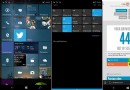
Win10 正式版可透過建立自訂主題檔案 (.theme) 實現深色介面 (類似暗黑模式),視覺上比單純註冊表修改更完整舒適。
.txt),貼入以下完整代碼 (請勿遺漏任何行):; Copyright © Microsoft Corp.
[Theme]
; Windows - IDS_THEME_DISPLAYNAME_AERO
DisplayName=AllDarkEveV2
ThemeId={30C467D0-E8DB-46AC-BC88-C9A157F57D63}
[Control Panel\Desktop]
PicturePosition=4
[VisualStyles]
Path=%SystemRoot%\Resources\Themes\Aero\AeroLite.msstyles
ColorStyle=NormalColor
Size=NormalSize
AutoColorization=0
ColorizationColor=0X7F000000
VisualStyleVersion=10
HighContrast=3
[MasterThemeSelector]
MTSM=RJSPBS
[Control Panel\Colors]
ActiveBorder=45 45 45
ActiveTitle=45 45 45
AppWorkspace=45 45 45
Background=45 45 45
ButtonAlternateFace=192 192 192
ButtonDkShadow=45 45 45
ButtonFace=45 45 45
ButtonHilight=45 45 45
ButtonLight=45 45 45
ButtonShadow=128 128 128
ButtonText=220 220 220
GradientActiveTitle=128 0 128
GradientInactiveTitle=0 128 0
GrayText=128 128 128
Hilight=128 128 128
HilightText=252 252 252
HotTrackingColor=220 220 220
InactiveBorder=45 45 45
InactiveTitle=45 45 45
InactiveTitleText=192 192 192
InfoText=255 255 255
InfoWindow=45 45 45
Menu=45 45 45
... (其餘色彩參數省略,請以完整代碼為準)
AllDarkEveV2.theme (副檔名改為 .theme)。AeroLite.msstyles 並套用自訂色彩參數。此主題提供較柔和的深色介面,不如前版註冊表修改那般純黑,視覺更舒適。