Windows XP Windows 7 Windows 2003 Windows Vista Windows 綜合教學 Linux 系統教學
Windows 10 Windows 8 Windows 2008 Windows NT Windows Server 電腦軟體教學

Win10 關閉 SmartScreen 篩選器:控制面板 → 系統和安全 → 安全性與維護 → 更改 SmartScreen 設定 → 「不執行任何操作」

編輯:Windows 10 系統介紹

SmartScreen 篩選器頻繁攔截未簽名/低信譽程式,可透過圖形介面完全關閉 (不建議長期關閉)。

關閉步驟

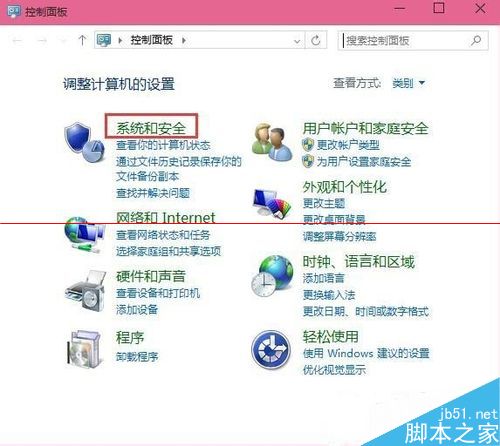
  1. Win+X 或右鍵「開始」→「控制面板」。
  2. 「系統和安全」。
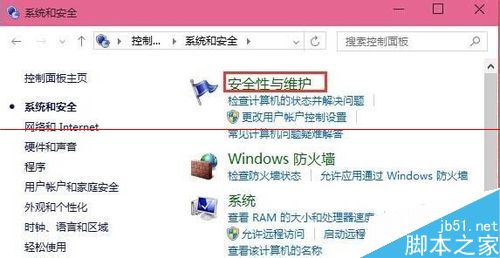
  3. 「安全性與維護」。
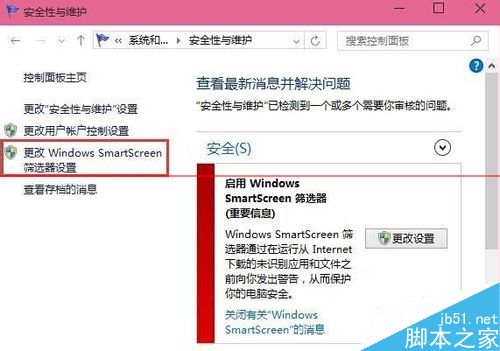
  4. 左側「更改 Windows SmartScreen 篩選器設定」。
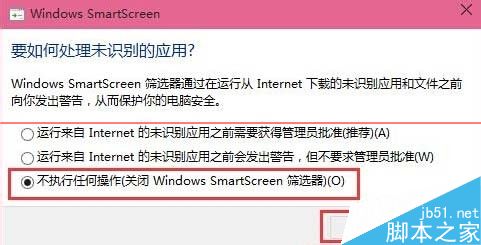
  5. 選擇「不執行任何操作 (關閉 Windows SmartScreen 篩選器)」→ 確定。
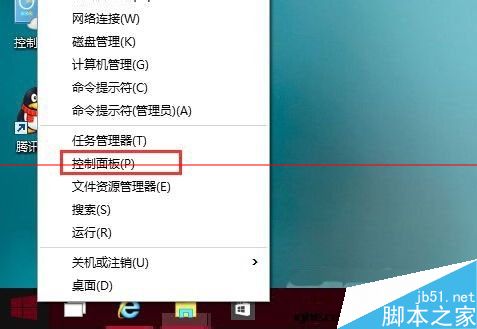
Win+X 開啟控制面板

系統和安全

安全性與維護

更改 SmartScreen 設定入口

選擇不執行任何操作關閉

功能說明

SmartScreen 基於雲端信譽數據庫檢查下載/執行文件,保護用戶免受惡意軟體侵害。關閉後將失去此層防護。

建議

  • 臨時關閉安裝信任軟體後立即重新開啟。
  • 企業環境可用組策略精細管控 (僅警告/僅管理員/完全關閉)。
  • 開發者簽名程式 (EV 代碼簽名證書) 可大幅降低誤攔截率。
Copyright © Windows教程網 All Rights Reserved