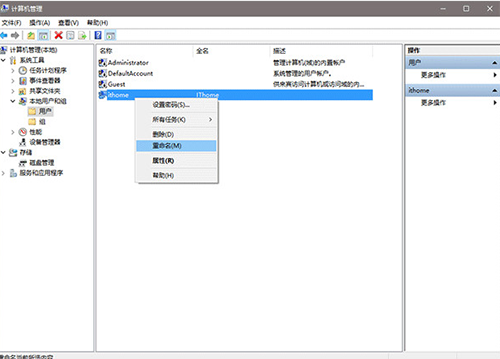
Win10 使用 PowerShell 重設 UWP 應用 (Get-AppXPackage ...) 可修復應用商店應用故障,但若系統元件存放區損壞,PowerShell 指令也會失效。解決方法同 ID 22458:以系統管理員身分執行 DISM 掃描與修復健康狀態,恢復系統映像完整性後,PowerShell 重設功能即可重新運作。
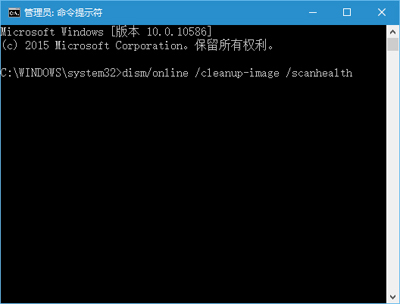
dism /online /cleanup-image /scanhealth(掃描,不修復)。dism /online /cleanup-image /restorehealth(自動從 Windows Update 下載健康檔案修復)。/source:wim:D:\sources\install.wim:1 指定安裝媒體。sfc /scannow 修復受保護系統檔。PowerShell 重設應用依賴 AppXDeploymentServer.dll、AppXDeploymentExtensions.dll 等系統元件,若元件存放區損壞導致這些 DLL 缺損/版本錯誤,指令即會報錯或無反應。DISM 從源頭修復元件存放區,間接恢復 PowerShell 功能。