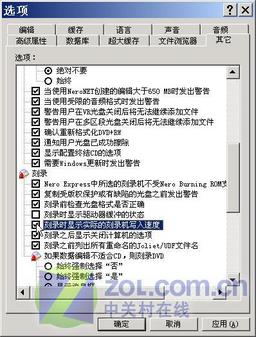
Nero Burning ROM 預設不顯示即時燒錄速度,透過簡單設定即可開啟此功能,隨時掌握燒錄進度與光驅實際寫入效能。
圖:勾選後燒錄視窗即會顯示即時速度
regedit
HKEY_CURRENT_USER\SOFTWARE\Ahead\Nero - Burning Rom\Recorder
ShowSingleRecorderSpeed
1
效果:燒錄過程中視窗將顯示當前實際寫入速度(如 16x、24x 等),方便判斷光驅效能與媒質相容性。
urlproc.exe 進程解析:360瀏覽器安全紅綠燈組件,可選關閉/刪除
Ctrl+Y 恢復上一步操作:撤銷的反向鍵,別讓誤操作毀了你的內容
VMware虛擬機Linux擴容後無法啟動修復:fstab標籤錯誤導致進入維護模式解決方案
TcpView 使用教學:監控端口連線,秒識木馬偽裝進程
imeutil.exe 是什麼程序?搜狗輸入法細胞詞庫進程詳細解析與停用方法
用 EVEREST 輕鬆找回已安裝軟體的序列號/授權碼
魯大師查看硬碟使用時間:硬體偵測功能一鍵掌握通電時數
標準破折號輸入法:Shift+減號鍵即是標準,字體渲染差異非輸入錯誤