Windows XP Windows 7 Windows 2003 Windows Vista Windows 綜合教學 Linux 系統教學
Windows 10 Windows 8 Windows 2008 Windows NT Windows Server 電腦軟體教學
您现在的位置: Windows教程網 >> Windows教程 >  >> 電腦軟體教學 >> 電腦軟體介紹

手動徹底移除 Microsoft Office 2013 (MSI 版) 完整步驟:刪除安裝包、停止服務、清理資料夾、移除殘留檔案

編輯:電腦軟體介紹

官方卸載工具無法完全清除時,需手動從註冊表、安裝目錄、系統服務、快取資料夾、用戶範本徹底移除 Office 2013 MSI 版本。操作需顯示隱藏檔案、系統管理員權限。

官方工具

Office 2013 卸載工具:下載

手動移除四大步驟

步驟 1:刪除 Windows Installer 套件 (.msi)

  1. 執行 installer 開啟 %windir%\Installer。
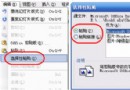
  2. 檢視 → 選擇詳細資料 → 加入「主旨」欄寬 340 像素。
  3. 依「主旨」排序,找到「Microsoft Office <產品名稱> 2013」的 .msi,右鍵「解除安裝」。

步驟 2:停止 Office Source Engine 服務

  1. services.msc 找到 Office Source Engine,若狀態為「已啟動」右鍵「停止」。

步驟 3:刪除安裝資料夾

  1. 刪除 %CommonProgramFiles%\Microsoft Shared\Office15、Source Engine。
  2. 64 位系統路徑為 %CommonProgramFiles(x86)%\Microsoft Shared\...。
  3. 刪除 %ProgramFiles%\Microsoft Office\Office15。
  4. 各磁碟根目錄 MSOCache\All Users\{90150000-001B-0409-0000-0000000FF1CE}-* 資料夾全刪(需顯示受保護系統檔)。

步驟 4:刪除用戶殘留檔案

  1. 刪除 %appdata%\Microsoft\Templates\Normal.dotm、Welcome to Word.dotx。
  2. 刪除 %appdata%\Microsoft\Document Building Blocks\<語言代碼>\Building Blocks.dotx。

完成上述步驟並重開機,Office 2013 即徹底移除。

Copyright © Windows教程網 All Rights Reserved