Windows XP Windows 7 Windows 2003 Windows Vista Windows 綜合教學 Linux 系統教學
Windows 10 Windows 8 Windows 2008 Windows NT Windows Server 電腦軟體教學
您现在的位置: Windows教程網 >> Windows教程 >  >> 電腦軟體教學 >> 電腦軟體介紹

BlueStacks 藍疊模擬器傳圖到微信教學:sdcard/windows/Pictures 互通目錄實測

編輯:電腦軟體介紹

核心機制:共享資料夾映射

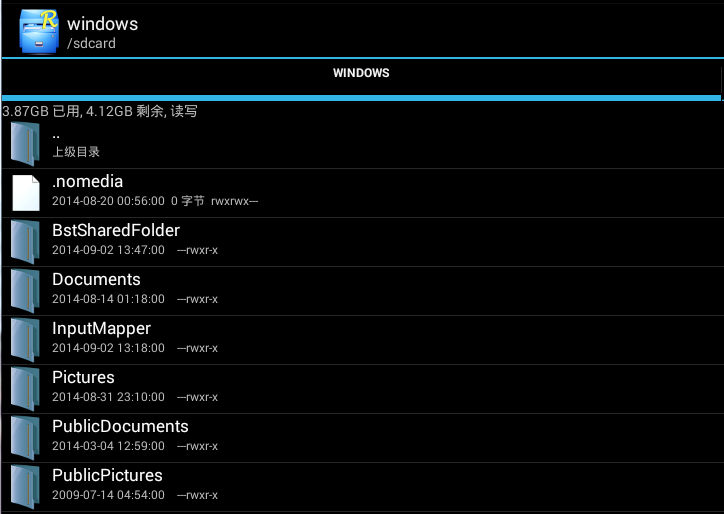
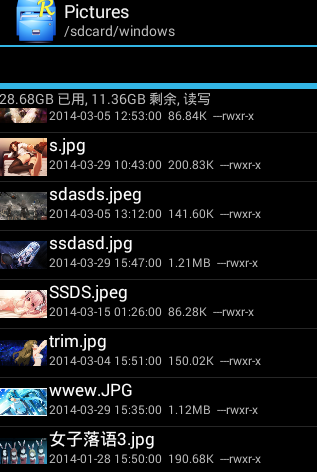
BlueStacks 將 Windows 使用者目錄映射至模擬器 /sdcard/windows/:

模擬器路徑對應 Windows 路徑用途
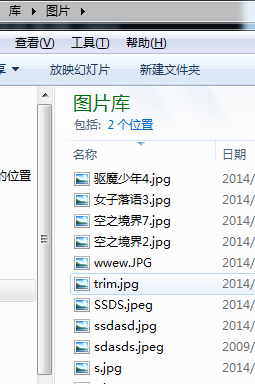
/sdcard/windows/Pictures%USERPROFILE%\Pictures (我的圖片)**微信讀取圖片來源目錄**
/sdcard/windows/Documents%USERPROFILE%\Documents (我的文件)文檔互通
/sdcard/windows/InputMapper腳本儲存**勿刪/勿動**
目錄結構 Pictures 映射 目錄對照

微信發圖正確姿勢(3 步)

  1. **電腦端**:將要發的圖片複製/移動到 圖片 資料夾(或子資料夾)。
  2. **模擬器端**:開啟 RE 管理器(或任意檔案管理器) → 進入 /sdcard/DCIM/ → 新建資料夾或用現有 → 將圖片從 /sdcard/windows/Pictures/ **剪貼/複製** 到此處。
  3. **重啟模擬器**(關鍵!媒體掃描需重啟觸發) → 開啟微信 → 聊天介面點擊「相冊」 → 即可看到剛傳入的圖片 → 發送。

避坑指南

  • 微信**無法直接讀取** /sdcard/windows/Pictures/,**必須移至 DCIM 目錄**才會被媒體庫掃描到。

  • RE 管理器操作需 Root 權限(BlueStacks 預設已 Root)。
  • 模擬器內刪除圖片 → Windows 端同步刪除(雙向同步),**操作前請備份原檔**。
  • 大量圖片建議在電腦端整理好資料夾結構,再一次性複製進模擬器 DCIM。
Copyright © Windows教程網 All Rights Reserved