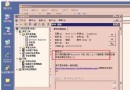
Red Hat Enterprise Linux / CentOS / Fedora 提供的 httpd (Apache 2.4) 套件包含 HTTP 配置工具 (system-config-httpd / redhat-config-httpd),提供圖形化介面管理 /etc/httpd/conf/httpd.conf,避免手工編輯錯誤。本文詳細說明工具安裝、各分頁功能、配置持久化與遷移注意事項。
前置條件與安裝
# 安裝必要套件
sudo dnf install -y httpd system-config-httpd   # RHEL 8/9, Fedora, Rocky, Alma
# 或
sudo yum install -y httpd system-config-httpd   # RHEL 7, CentOS 7

# 啟動圖形介面 (需 X11 轉發或本地桌面)
# 方式一:選單 → 系統工具 → HTTP 伺服器
# 方式二:終端執行
sudo system-config-httpd
關鍵警告:啟用圖形工具後,嚴禁手工編輯 httpd.conf。工具保存時會完全重寫配置檔,手工修改將被覆蓋。如需自定義指令,請建立 /etc/httpd/conf.d/*.conf 片段檔案。
分頁功能詳細操作
1. 主分頁 —— 基礎伺服器身分
| 欄位 | 對應指令 | 說明與建議 |
|---|
| 伺服器名稱 | ServerName | 完整合法域名 (FQDN),如 www.example.com。若留空,Apache 嘗試反解 IP,啟動較慢。 |
| 網站管理員郵箱 | ServerAdmin | 錯誤頁面顯示的聯繫郵箱,建議專用郵箱組 webmaster@example.com。 |
| 可用位址 | Listen | 預設 *:80。點擊「新增」可綁定特定 IP:Port,支援多埠 (80, 443, 8080)。1024 以下埠需 root 權限啟動。 |
2. 虛擬主機分頁 —— 多站點核心配置
編輯預設設定
- 目錄頁搜尋列表 (
DirectoryIndex):index.html index.php index.jsp,按優先序排列
- 錯誤頁面 (
ErrorDocument):為 403/404/500/503 指定靜態頁或動態腳本,提升用戶體驗
- 預設錯誤頁頁腳:選擇「顯示頁腳和電子郵件地址」便於用戶回報
新增虛擬主機 (逐站點隔離)
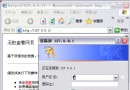
- 點擊「新增」→ 彈出「虛擬主機屬性」對話框
- 常規選項卡:
- 虛擬主機名稱:
www.example.com (ServerName)
- 文檔根目錄:
/var/www/vhosts/example.com (DocumentRoot)
- 管理員郵箱:
webmaster@example.com
- 主機資訊選項卡:別名 (ServerAlias)
example.com *.example.com、IP 基礎/名稱基礎選擇
- 日誌選項卡:獨立存取/錯誤日誌路徑、自定義日誌格式 (
LogFormat)、HostnameLookups Off (效能)
- 環境變數選項卡:
SetEnv/PassEnv/UnsetEnv 供 CGI/SSI 使用
- 目錄選項卡:對應
<Directory> 區塊,設定 Options、AllowOverride、Require、Limit
- 效能選項卡:
MaxRequestsPerChild、KeepAlive、Timeout 覆蓋全域設定
3. 伺服器分頁 —— 全域行為控制
- 鎖定檔/進程 ID:
LockFile、PidFile、CoreDumpDirectory 路徑需可寫
- 用戶/群組:
User apache、Group apache (專用非特權帳號)
- 最大連線數:
MaxRequestWorkers (prefork) / ThreadsPerChild (event/worker),依記憶體規劃
- 超時設定:
Timeout 60、KeepAliveTimeout 5
- 模組載入:僅載入必要模組,減少記憶體佔用與攻擊面
4. 效能微調分頁 —— 連線與資源優化
| 參數 | 指令 | 建議值 (8GB RAM 參考) |
|---|
| 最大連線數 | MaxRequestWorkers | prefork: 200-300 / event: 400-600 |
| 每進程線程數 | ThreadsPerChild (event/worker) | 25-50 |
| 啟動/最小/最大閒置伺服器 | StartServers/MinSpareServers/MaxSpareServers | prefork: 10/10/20 |
| 持久連線 | KeepAlive On/Off | On (靜態資源多) / Off (高併發 API) |
| 持久連線請求上限 | MaxKeepAliveRequests | 100-500 |
| 請求超時 | Timeout | 30-60 秒 |
配置生效與驗證流程
- 工具列 → 「檔案」 → 「儲存」 (或 Ctrl+S),工具自動寫入
/etc/httpd/conf/httpd.conf 及 /etc/httpd/conf.d/ 片段
- 語法檢查:
sudo apachectl configtest → 輸出 Syntax OK
- 平滑重載:
sudo systemctl reload httpd (不中斷現有連線)
- 驗證虛擬主機:
curl -H "Host: www.example.com" -I https://localhost/ 確認回應正確
遷移與備份最佳實踐
- 版本遷移:2.2 → 2.4 主要變更:
Order Allow,Deny → Require all granted、LockFile → Mutex、模組重命名。工具提供遷移嚮導,參考 /usr/share/doc/httpd-*/migration.html
- 配置備份:
tar czf httpd-conf-$(date +%F).tar.gz /etc/httpd/conf /etc/httpd/conf.d,納入 Git 版控
- 多環境同步:使用 Ansible
template 模組渲染 httpd.conf.j2,而非依賴圖形工具
常見問題排查
| 現象 | 可能原因 | 解決方向 |
|---|
| 儲存後配置未生效 | 未重載服務、SELinux 阻擋寫入 | systemctl reload httpd、ausearch -m avc -c httpd |
| 虛擬主機不生效 | DocumentRoot 權限、NameVirtualHost 缺失、ServerName 拼寫錯誤 | chcon -R -t httpd_sys_content_t /path、檢查 Listen 80 |
| 圖形工具啟動失敗 | 缺少 X11 庫、GTK 主題錯誤 | dnf install -y gtk3 libcanberra-gtk3、使用 SSH -X 轉發 |
| 自定義模組不生效 | 工具不支援第三方模組 | 手工建立 /etc/httpd/conf.d/custom_module.conf 載入 |
善用 HTTP 配置工具可大幅降低 Apache 配置錯誤率,但生產環境建議採用 基礎設施即代碼 管理配置,圖形工具僅作為初始化、驗證、教學輔助。掌握其生成配置的對應關係,才能在自動化與手工介入間游刃有餘。