依據 Yahoo! 34 條黃金法則與 YSlow 13 項評分規則,第 3 條「Add an Expires header(新增 Expires 標頭)」 是最容易實施且效果立竿見影的優化手段。透過設定靜態資源的快取過期時間,讓瀏覽器二次訪問時直接從本地快取讀取,減少 HTTP 請求與頻寬消耗。
| 標頭 | HTTP 版本 | 用途 | 優先級 |
|---|---|---|---|
Expires | 1.0 | 指定絕對過期時間(GMT 格式) | 較低 |
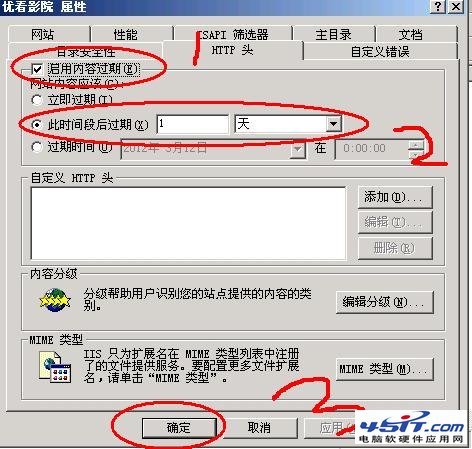
Cache-Control: max-age=秒數 | 1.1 | 指定相對過期秒數,支援 public/private/no-cache 等指令 | 較高(覆蓋 Expires) |
Last-Modified | 1.0/1.1 | 資源最後修改時間,配合 If-Modified-Since 驗證 | 驗證用 |
ETag | 1.1 | 實體標籤(檔案指紋),強驗證機制,解決 1 秒內多次修改問題 | 驗證用 |
| 資源類型 | 建議過期 | 理由 |
|---|---|---|
| 圖片、Favicon、字體、影音 | 1 年或更久(max-age=31536000) | 極少變動,檔名可帶雜湊值做版本控制 |
| CSS、JavaScript | 1 個月~1 年(配合檔名版本號) | 部署時更新檔名(如 app.v2.css)即可強制刷新 |
| HTML 動態頁面 | 不快取或極短(max-age=0, must-revalidate) | 內容頻繁變動,避免顯示舊資料 |
| API 回應 | 視業務而定(通常 no-store) | 資料即時性要求高 |
# 載入模組
LoadModule expires_module modules/mod_expires.so

# 啟用並設定預設規則
ExpiresActive On
ExpiresDefault "access plus 1 month"

# 依類型細分
ExpiresByType image/gif "access plus 1 year"
ExpiresByType image/jpeg "access plus 1 year"
ExpiresByType image/png "access plus 1 year"
ExpiresByType image/webp "access plus 1 year"
ExpiresByType image/x-icon "access plus 1 year"
ExpiresByType text/css "access plus 1 month"
ExpiresByType application/javascript "access plus 1 month"
ExpiresByType application/json "access plus 1 month"
ExpiresByType font/woff "access plus 1 year"
ExpiresByType font/woff2 "access plus 1 year"

# 動態內容不快取
<FilesMatch "\.(php|jsp|asp|aspx)$">
    ExpiresActive Off
    Header set Cache-Control "no-store, no-cache, must-revalidate, max-age=0"
    Header set Pragma "no-cache"
</FilesMatch>
location ~* \.(jpg|jpeg|png|gif|ico|webp|svg|woff|woff2)$ {
    expires 1y;
    add_header Cache-Control "public, immutable";
}

location ~* \.(css|js)$ {
    expires 30d;
    add_header Cache-Control "public";
}

# 動態頁面
location ~ \.php$ {
    expires -1;
    add_header Cache-Control "no-store, no-cache, must-revalidate";
}
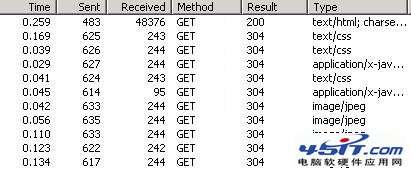
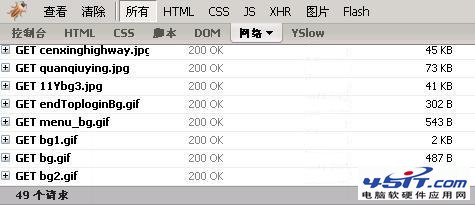
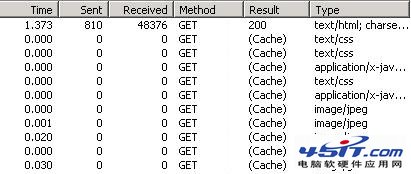

| 指標 | 首次訪問 | 二次訪問(啟用過期) | 二次訪問(未啟用) |
|---|---|---|---|
| HTTP 請求數 | 49 | 9 (Result=Cache) | 49 (含 304 Not Modified) |
| 傳輸位元組 | 完整下載 | 近 0 (從快取讀取) | 僅標頭交換 |
| 頁面載入時間 | 基準 | 大幅降低(秒開體驗) | 略快於首次 |
Expires/Cache-Control 後,二次訪問零請求、零流量,瀏覽器直接讀取快取(HttpWatch 顯示 Result: Cache)。If-Modified-Since/If-None-Match 獲取 304 Not Modified,但請求數未減少,仍有 RTT 延遲。Cache-Control: max-age=0)。// ASP.NET
Response.Cache.SetExpires(DateTime.Now.AddDays(30));
Response.Cache.SetCacheability(HttpCacheability.Public);
// PHP
header("Cache-Control: public, max-age=2592000"); // 30 天
header("Expires: " . gmdate("D, d M Y H:i:s", time() + 2592000) . " GMT");
正確設定「內容過期」是成本最低、效果最即時的前端優化。搭配檔名版本控制(指紋),即可同時兼顧「長效快取」與「精準更新」。建議所有靜態資源皆納入策略,動態頁面視業務謹慎設定。