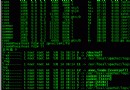
CentOS 預設 vi 為精簡版,無語法高亮功能。需安裝 vim-enhanced 並設定別名將 vi 指向 vim。
yum install -y vim-enhancedecho "alias vi='vim'" >> /etc/profile
source /etc/profile# 編輯系統級 vim 設定
vi /etc/vim/vimrc
# 確認或新增以下行
syntax onecho "export TERM=xterm-color" >> /etc/profile
source /etc/profilesource /etc/profile 後,開啟任意程式碼檔案測試高亮效果。~/.vimrc,常用範例:set number " 顯示行號
set tabstop=4 " Tab 寬度
set shiftwidth=4 " 縮排寬度
set expandtab " Tab 轉空白
set autoindent " 自動縮排
set hlsearch " 搜尋高亮
set ignorecase " 搜尋忽略大小寫echo $TERM 輸出含 color 或 256color。/etc/vim/vimrc 影響所有使用者,~/.vimrc 僅影響當前使用者。VMware vSphere 安裝 VMware Tools 圖文完整教程:掛載、解壓、編譯、驗證全流程
VCS 雙機啟動報 STALE ADMIN WAIT:.stale 檔案殘留導致資源組 Faulted
CentOS 7 最小化安裝後初始化配置標準化手冊:網絡、YUM 源、內核參數、時間同步
Linux 指令列使用 transmission-cli 下載 BitTorrent 檔案教學
Linux 批量替換文件內容神技:find + xargs + Perl 一鍵搞定 700+ pom.xml
Linux 聲卡驅動安裝與配置全攻略:ALSA 編譯安裝、模組對照表與疑難排解
Linux 進程後台穩定運行全方案:nohup、setsid、子Shell、disown、systemd 服務化五大姿勢