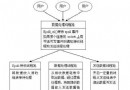
介面 用途 來源套件 virbr0 libvirt 虛擬機預設 NAT 網橋 libvirt-daemon / qemu-kvm pan0 藍牙個人區域網路 (PAN) 支援 bluez / networkmanager-bluetooth 二、移除步驟 (依序嘗試)
步驟 1:移除虛擬化套件群組
yum groupremove "Virtualization"
# 或 dnf groupremove "Virtualization" (Fedora 22+)
驗證:ifconfig -a 或 ip link show 確認 virbr0 是否消失。
步驟 2:移除 libvirt 核心套件 (若步驟 1 無效)
yum remove libvirt
# 或 dnf remove libvirt
再次驗證虛擬介面狀態。
步驟 3:處理 YUM 錯誤 (RHN 插件衝突)
若 yum 報錯 This system is not registered with RHN:
vi /etc/yum/pluginconf.d/rhnplugin.conf
# 將 enabled=1 改為 enabled=0
# 禁用 RHN 插件後重試移除
yum remove libvirt
步驟 4:移除藍牙相關套件 (清理 pan0)
yum remove bluez bluez-libs networkmanager-bluetooth
三、重啟驗證
reboot
# 重啟後執行
ifconfig -a
# 或
ip link show
預期結果:僅剩 eth0 (實體網卡) 與 lo (回環介面)。
四、手動臨時關閉 (不移除套件)
若暫時不需要,可手動關閉介面並禁用服務:
# 關閉 virbr0
virsh net-destroy default
virsh net-undefine default

# 關閉 pan0
ip link set pan0 down
ip link delete pan0 type bridge

# 禁用 libvirtd 服務
systemctl stop libvirtd
systemctl disable libvirtd

# 禁用藍牙服務
systemctl stop bluetooth
systemctl disable bluetooth
注意: 手動關閉重啟後會恢復,徹底移除需移除套件。
五、驗證輸出範例
[root@localhost ~]# ifconfig
eth0: flags=4163 mtu 1500
inet 192.168.184.128 netmask 255.255.255.0 broadcast 192.168.184.255
inet6 fe80::20c:29ff:fefa:e224 prefixlen 64 scopeid 0x20 mtu 16436
inet 127.0.0.1 netmask 255.0.0.0
inet6 ::1 prefixlen 128 scopeid 0x10
loop txqueuelen 1000 (Local Loopback)
確認無 virbr0、pan0 介面即為成功。