Linode VPS 預設使用美國時區,這對於需要執行定時任務(如 cron job)、查看系統日誌或進行資料庫備份的使用者來說極為不便。本文將詳細說明如何透過 tzselect 指令互動式修改時區,並永久生效於使用者環境中。
以 root 或具備 sudo 權限的使用者登入 VPS,執行以下指令:
tzselect
系統會依序詢問洲別、國家、地區,請依提示輸入對應編號:
輸入 5 選擇 Asia(亞洲)。
輸入 9 選擇 China(中國)。
輸入 1 選擇 east China – Beijing, Guangdong, Shanghai, etc.(東八區標準時間)。
畫面顯示:
Therefore TZ="Asia/Shanghai" will be used.
輸入 1 確認(Yes)。
tzselect 僅顯示結果,不會自動修改系統設定。需手動編輯 ~/.bash_profile(或 ~/.profile),在檔案末尾加入:
TZ='Asia/Shanghai'
export TZ
儲存後,執行 source ~/.bash_profile 或重新登入即可生效。
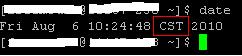
輸入 date 指令,應顯示 CST(China Standard Time)時區,例如:
Fri Jul 7 10:32:18 CST 2025
若需全系統生效,可執行:
ln -sf /usr/share/zoneinfo/Asia/Shanghai /etc/localtime
並確認 /etc/timezone 內容為 Asia/Shanghai。
完成上述步驟後,Linode VPS 即能正確使用北京/台北時間,定時任務與日誌時間戳記將不再有時差困擾。