Linux 主機與 Windows 主機間如何互傳檔案?常見場景:Linux 抓取圖片傳至 Windows 做 Word 插圖,或 Windows 下載 Linux 套件傳回 Linux 安裝。本文採 FTP 協定,Windows 架設 Serv-U 做 FTP 伺服器,Linux 用 ftp 指令上傳/下載,經測試完美滿足需求。
10.18.34.115(FTP 伺服器)10.18.34.251(FTP 客戶端)
setup.exe 全選預設10.18.34.115RoseRedyint,設定密碼)E:\(本文操作目標),鎖定根目錄:是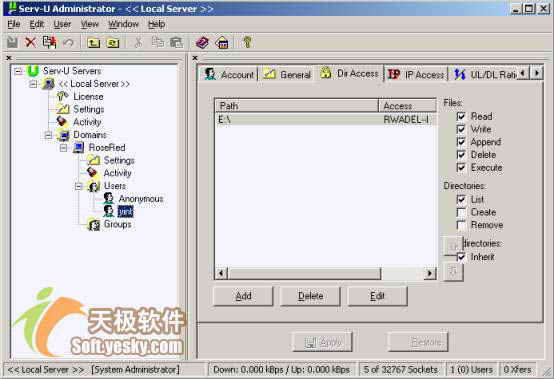
ftp 10.18.34.115
# 輸入用戶名 yint 與密碼,認證通過進入 ftp> 提示符| 指令 | 格式 | 範例 |
|---|---|---|
| get | get [remote-file] [local-file] | get /rose/1.bmp 1.bmp |
| mget | mget [remote-files] | cd /rose → mget *.* |
檔案下載至 Linux 當前工作目錄(如 /root/yint)。
| 指令 | 格式 | 範例 |
|---|---|---|
| put | put local-file [remote-file] | put 1.bmp /rose/333.bmp |
| mput | mput local-files | cd /rose → mput *.bmp |
上傳檔案來源為 Linux 當前工作目錄。
bye掌握此套流程,即可輕鬆實現 Linux-Windows 雙向檔案傳輸。