Windows XP Windows 7 Windows 2003 Windows Vista Windows 綜合教學 Linux 系統教學
Windows 10 Windows 8 Windows 2008 Windows NT Windows Server 電腦軟體教學
您现在的位置: Windows教程網 >> Windows教程 >  >> Windows 綜合教學 >> 關於 Windows

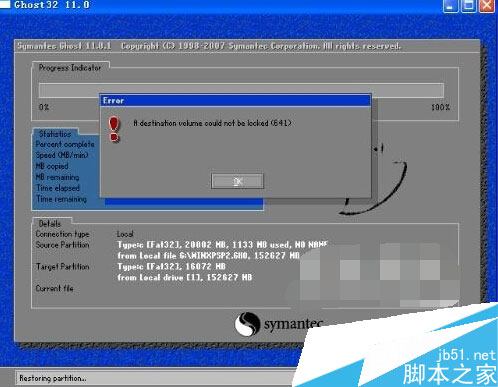
Ghost Win7 安裝報錯「a destination volume could not be locked (641)」?關閉佔用程式/重新分區解決

編輯:關於 Windows

使用 Ghost 還原/安裝 Windows 7 時,若彈出錯誤 「a destination volume could not be locked (641)」,表示目標磁碟分區被其他程式佔用(鎖定失敗),無法寫入映像檔。常見於安裝前開啟分區工具 (DG、DiskGenius)、檔案總管存取該分區、或背景服務掃描磁碟。
解決方案

  1. 關閉所有非必要程式:安裝前關閉分區工具、壓縮軟體、殺毒掃描、雲端同步客戶端等可能存取目標分區的程式。
  2. 工作管理員結束殘留進程:Ctrl+Shift+Esc 開啟工作管理員,結束非系統關鍵進程 (如 `dg.exe`、`partitionwizard.exe` 等)。
  3. 重新開機後直接安裝:重開機不開任何程式,直接啟動 Ghost 安裝/還原。
  4. 進入 PE 環境格式化目標分區再安裝:使用 USB 開機進入 WinPE,用 DiskGenius/內建磁碟管理**格式化目標分區 (C:)**,再執行 Ghost 安裝,徹底避免鎖定衝突。

Ghost安裝報錯641畫面

根本原因分析

  • Ghost 需獨佔目標磁碟進行扇區級寫入,任何檔案系統層級的存取 (含系統自身的 `System Volume Information` 索引、防毒掃描、分區工具掛載) 都會導致鎖定失敗。
  • 錯誤代碼 641 為 Ghost 內部定義的「無法鎖定磁碟區」錯誤。

預防建議

  • 安裝系統前**務必進入 WinPE 環境操作**,避免 Windows 線上環境下的鎖定衝突。
  • 使用支援熱備份/快照技術的備份軟體 (如 AOMEI Backupper、Macrium Reflect) 可在線上環境直接備份/還原,無需進 PE。
Copyright © Windows教程網 All Rights Reserved