Windows 8/8.1 強制顯示鎖定畫面,對傳統桌面用戶較不便。系統未提供直接關閉選項,但可透過登錄或群組原則停用。
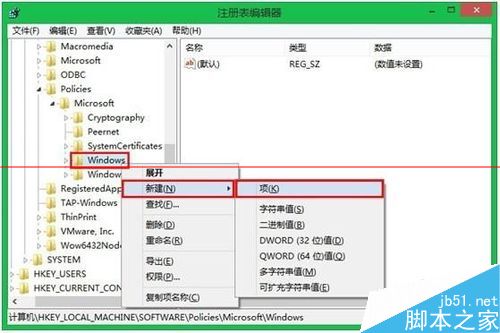
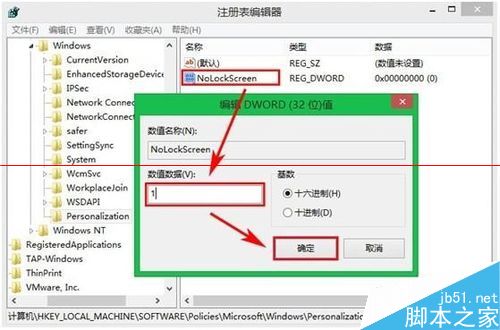
regedit 開啟登錄編輯器。HKEY_LOCAL_MACHINE\SOFTWARE\Policies\Microsoft\Windows。Personalization。Personalization,右側空白處右鍵 → 新增 → 「DWORD (32 位元) 值」,命名 NoLockScreen。NoLockScreen,數值資料改為 1,確定。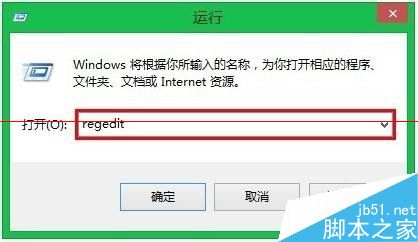
gpedit.msc。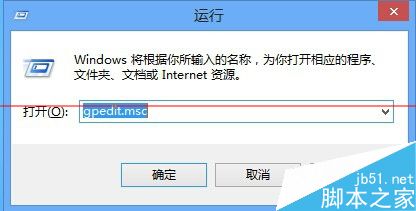
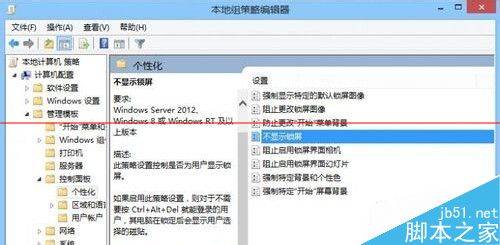
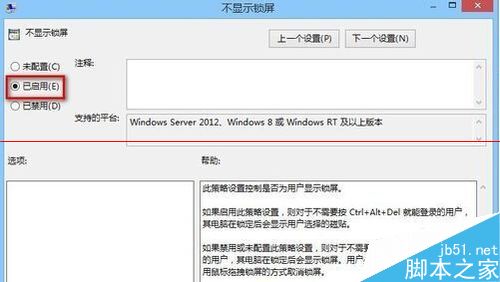
補充:群組原則僅適用於專業版/企業版;家用版請使用登錄法。修改前建議備份登錄或建立還原點。
重新安裝 Windows 完整指南:備份、選項選擇、安裝模式與驅動準備
Win7 定時關機/重啟指令大全:shutdown 參數詳解與實戰範例
Win8.1 藍屏 0x00000005 反覆發生?進入安全模式執行 CHKDSK /F 修復檔案系統錯誤
Windows 10 步驟記錄器是什麼?錄製操作步驟教學(含圖文與幻燈片模式)
Windows 10 內建「手機伴侶」App:跨平台同步音樂、照片、檔案,支援 iOS/Android/WP
x86、x86_64、x64、AMD64、IA64 差異總整理:32位元與64位元架構完全解析