升級 Win10 1607 後,安裝美圖秀秀 4.0.1 雖能正常啟動,但右鍵圖片選「開啟方式」→「美圖秀秀」卻毫無反應。這是因為檔案關聯未正確註冊,透過預設程式設定或 Microsoft Store 重裝即可解決。
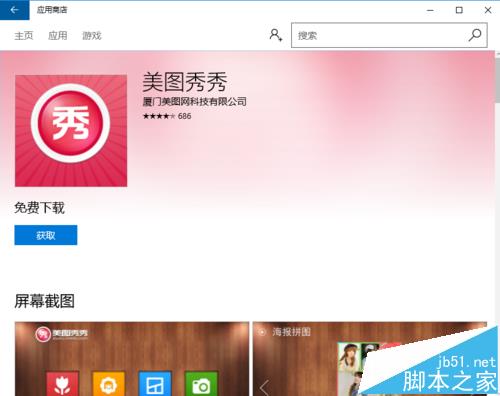
方法一:從 Microsoft Store 重新安裝
- 開啟 Microsoft Store,搜尋「美圖秀秀」。
- 點選安裝,Store 版會自動處理檔案關聯與權限。
註:早期 Store 版曾出現「暫停下載」狀況,若遇到請改用方法二。
方法二:透過控制台設定預設程式關聯(推薦)
- 開啟 控制台 → 檢視模式切換為 小圖示 → 點選 預設程式。
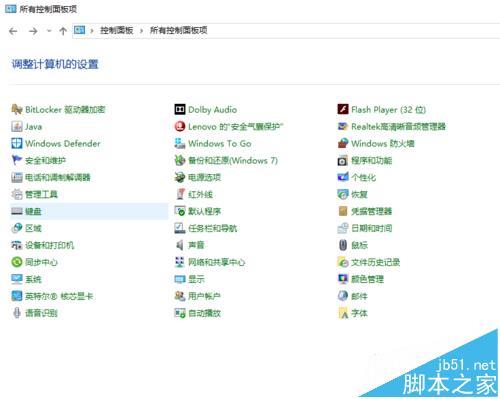
- 選擇 將檔案類型或通訊協定與程式建立關聯。
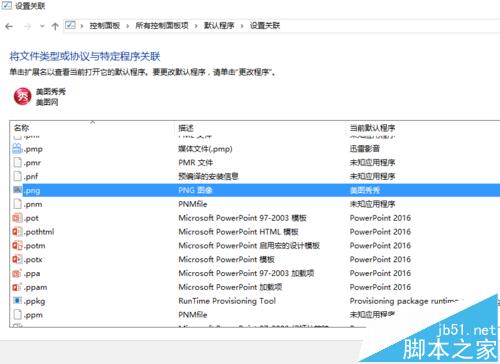
- 找到常用圖片副檔名(.jpg、.png、.bmp 等),將預設程式改為 美圖秀秀。
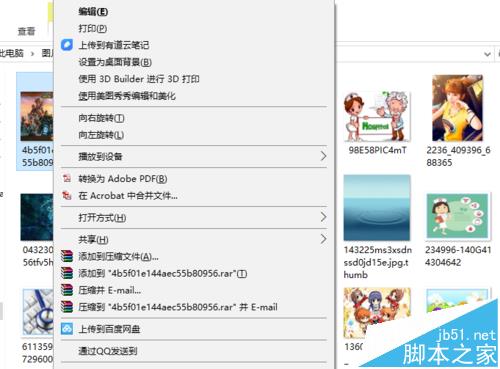
- 設定完成後,右鍵圖片會出現「用美圖秀秀編輯/優化」選項,請使用此選項而非「開啟方式」。
相關推薦
- Win10 1607 筆記本如何取消低電量自動休眠?
檔案關聯錯誤是 Win10 大版本更新後常見問題,透過預設程式重新建立關聯最為穩定有效。