Win8 使用者常因權限不足無法存取/刪除檔案。本文提供兩種取得最高權限的方法。
Administrator,右鍵「內容」→ 取消勾選「帳號已停用」。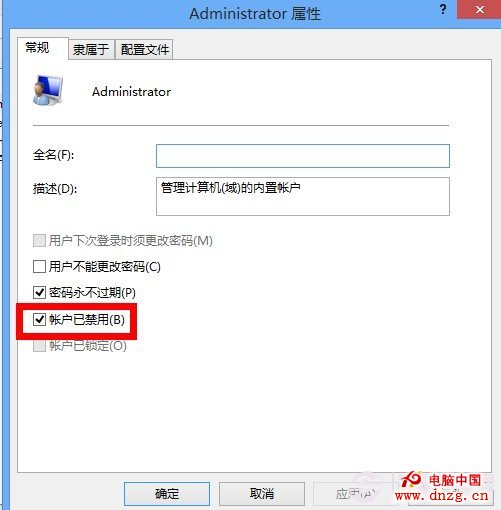
.reg 檔並雙擊執行。Windows Registry Editor Version 5.00
; 取得檔案修改權限
[HKEY_CLASSES_ROOT\*\shell\runas]
@="管理員權限"
"Icon"="C:\\Windows\\System32\\imageres.dll,102"
"NoWorkingDirectory"=""
[HKEY_CLASSES_ROOT\*\shell\runas\command]
@="cmd.exe /c takeown /f \"%1\" && icacls \"%1\" /grant administrators:F"
"IsolatedCommand"="cmd.exe /c takeown /f \"%1\" && icacls \"%1\" /grant administrators:F"
[HKEY_CLASSES_ROOT\exefile\shell\runas2]
@="管理員權限"
"Icon"="C:\\Windows\\System32\\imageres.dll,102"
"NoWorkingDirectory"=""
[HKEY_CLASSES_ROOT\exefile\shell\runas2\command]
@="cmd.exe /c takeown /f \"%1\" && icacls \"%1\" /grant administrators:F"
"IsolatedCommand"="cmd.exe /c takeown /f \"%1\" && icacls \"%1\" /grant administrators:F"
[HKEY_CLASSES_ROOT\Directory\shell\runas]
@="管理員權限"
"Icon"="C:\\Windows\\System32\\imageres.dll,102"
"NoWorkingDirectory"=""
[HKEY_CLASSES_ROOT\Directory\shell\runas\command]
@="cmd.exe /c takeown /f \"%1\" /r /d y && icacls \"%1\" /grant administrators:F /t"
"IsolatedCommand"="cmd.exe /c takeown /f \"%1\" /r /d y && icacls \"%1\" /grant administrators:F /t"
; 還原原始權限
[HKEY_CLASSES_ROOT\*\shell\runas-]
@="還原原始權限"
"Icon"="C:\\Windows\\System32\\imageres.dll,101"
"NoWorkingDirectory"=""
[HKEY_CLASSES_ROOT\*\shell\runas-\command]
@="cmd.exe /c takeown /f \"%1\" && icacls \"%1\" /reset && cacls \"%1\" /e /r \"%%USERNAME%%\""
"IsolatedCommand"="cmd.exe /c takeown /f \"%1\" && icacls \"%1\" /reset && cacls \"%1\" /e /r \"%%USERNAME%%\""
[HKEY_CLASSES_ROOT\exefile\shell\runas2-]
@="還原原始權限"
"Icon"="C:\\Windows\\System32\\imageres.dll,101"
"NoWorkingDirectory"=""
[HKEY_CLASSES_ROOT\exefile\shell\runas2-\command]
@="cmd.exe /c takeown /f \"%1\" && icacls \"%1\" /reset && cacls \"%1\" /e /r \"%%USERNAME%%\""
"IsolatedCommand"="cmd.exe /c takeown /f \"%1\" && icacls \"%1\" /reset && cacls \"%1\" /e /r \"%%USERNAME%%\""
[HKEY_CLASSES_ROOT\Directory\shell\runas-]
@="還原原始權限"
"Icon"="C:\\Windows\\System32\\imageres.dll,101"
"NoWorkingDirectory"=""
[HKEY_CLASSES_ROOT\Directory\shell\runas-\command]
@="cmd.exe /c takeown /f \"%1\" /r /d y && icacls \"%1\" /reset && cacls \"%1\" /e /r \"%%USERNAME%%\""
"IsolatedCommand"="cmd.exe /c takeown /f \"%1\" /r /d y && icacls \"%1\" /reset && cacls \"%1\" /e /r \"%%USERNAME%%\""
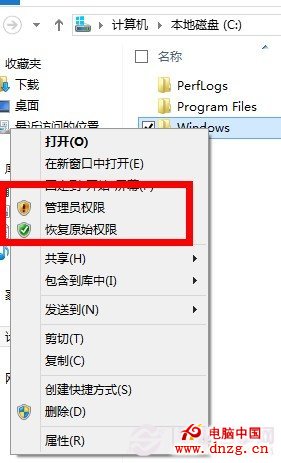
右鍵選單新增管理員權限與還原權限選項
方法一適合需要完整系統控制權的進階操作;方法二適合日常針對特定檔案/資料夾快速提權,更靈活安全。