Windows XP Windows 7 Windows 2003 Windows Vista Windows 綜合教學 Linux 系統教學
Windows 10 Windows 8 Windows 2008 Windows NT Windows Server 電腦軟體教學

Windows 8 開始畫面磁貼列數修改教學:登錄編輯器調整 Layout_MaximumRowCount

編輯:Win8 系統應用技巧

Windows 8 開始畫面磁貼顯示行數預設依螢幕解析度自動決定,透過登錄編輯器可手動調整最大行數,在螢幕解析度支援範圍內增加或減少磁貼列數。

修改步驟

  1. Win+R 輸入 regedit 開啟登錄編輯器。
  2. 瀏覽至:
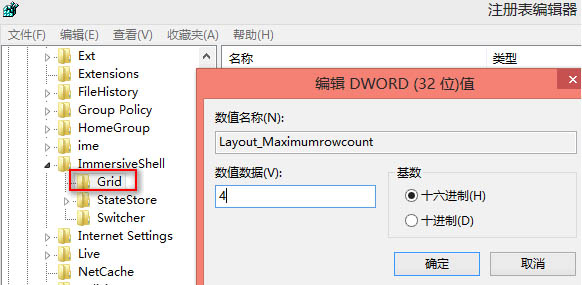
    HKEY_CURRENT_USER\Software\Microsoft\Windows\CurrentVersion\ImmersiveShell\Grid
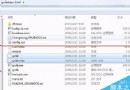
  3. 右鍵空白處 → 「新增」 → 「DWORD (32 位元值)」 → 命名為 Layout_MaximumRowCount。
  4. 雙擊修改數值資料為想要的行數(十進位),如 3、4、5 等。
  5. 登出並重新登入(或重新開機),開始畫面磁貼行數即依設定顯示。
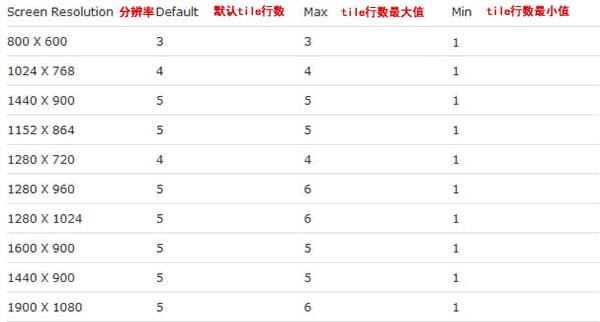
不同解析度磁貼行數對照 登錄編輯器新增 Layout_MaximumRowCount

解析度與行數限制

螢幕解析度最大行數最小行數
1024×76833
1366×76843
1920×108054
2560×144064

注意:設定值必須在該解析度的最小/最大行數範圍內,超出範圍無效。實測 1280×960 以上解析度才能增加行數。

適用版本

  • Windows 8、Windows 8.1(32/64 位元均適用,均建立 DWORD 32 位元值)。
  • Windows 10 開始選單架構不同,此設定不適用。

透過登錄微調,依個人習慣優化開始畫面磁貼密度。

Copyright © Windows教程網 All Rights Reserved