Windows XP Windows 7 Windows 2003 Windows Vista Windows 綜合教學 Linux 系統教學
Windows 10 Windows 8 Windows 2008 Windows NT Windows Server 電腦軟體教學

Windows 8 Metro 版 IE10 與郵件應用設定教學

編輯:Win8 系統應用技巧

Windows 8 Metro 版 IE10 啟用條件 + 內建郵件應用多帳戶管理

Metro 版 IE10 為何變成桌面版?

IE10 必須設為「預設瀏覽器」才能以 Metro 介面啟動。若被其他瀏覽器搶佔預設地位,IE10 圖示會變回桌面版樣式。
將 IE10 設為預設瀏覽器

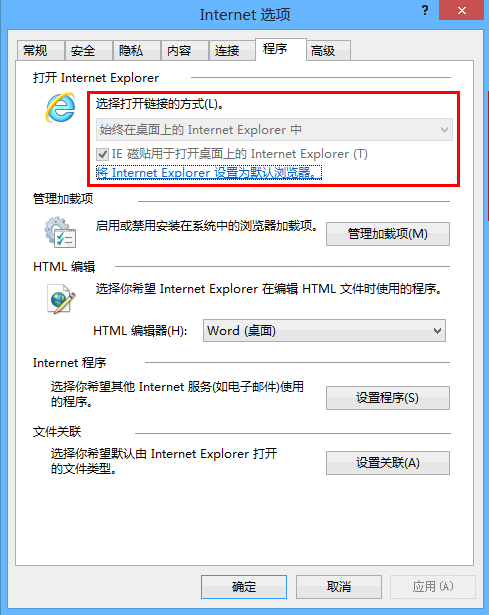
  1. 開啟桌面版 IE10 → 工具(齒輪) → 「網際網路選項」 → 「程式」分頁。
  2. 點選「設定 Internet Explorer 為預設瀏覽器」。
  3. IE 設為預設
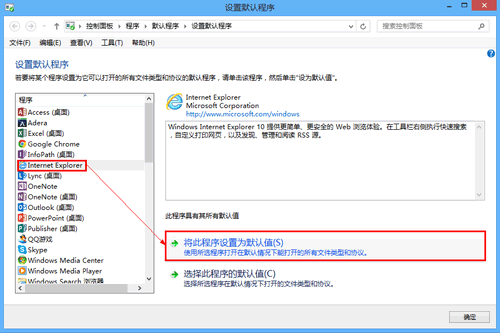
  4. 在「預設程式」視窗左側選擇「Internet Explorer」 → 右側點選「將此程式設為預設值」 → 確定。
  5. 預設程式設定

回到開始畫面,IE10 圖示應變為白色 Metro 風格 Logo。注意:設定後其他瀏覽器的 Metro 版將無法啟動(僅能以桌面版運行)。
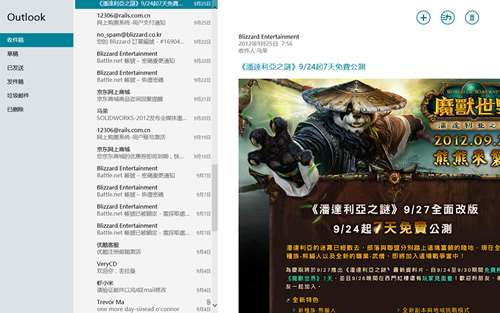
內建郵件應用基本設定

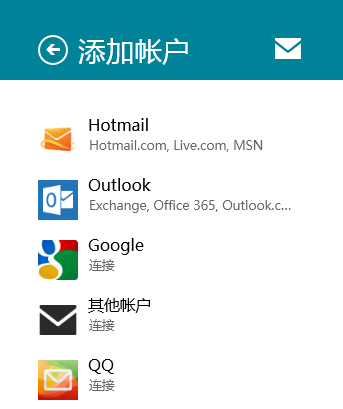
  • 開始畫面預設內建「郵件」磚塊,支援 Hotmail/Outlook/Gmail/QQ 郵箱自動關聯,亦可手動新增 EAS/IMAP/POP 帳戶。
  • 郵件應用首頁
  • 使用 Microsoft 帳號登入 Windows 8 者,開啟郵件即自動同步該帳號信箱。
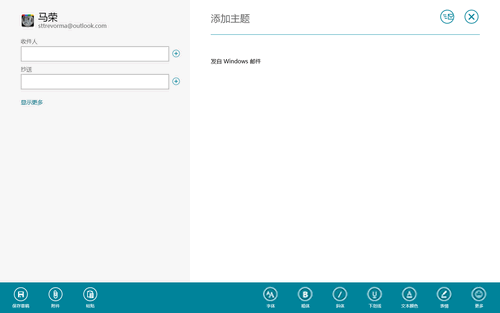
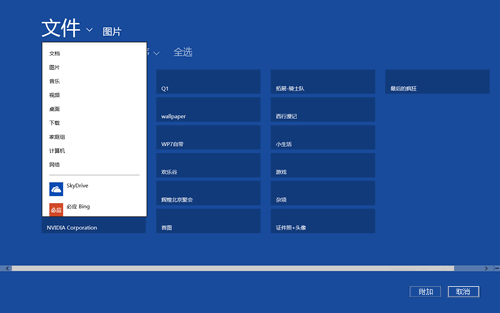
  • 寫信: 右上角「+」 → 填寫收件人、主旨、內容 → 右鍵工具列可設定字型、表情、附件(含 SkyDrive 雲端檔案)。
  • 寫信介面 附件選單
  • 帳戶管理: Charms 列 → 「設定」 → 「帳戶」 → 新增/移除/編輯郵箱帳戶。
  • 帳戶管理

新郵件到達時,郵件磚塊與鎖定畫面均會顯示通知。

Copyright © Windows教程網 All Rights Reserved