Windows XP Windows 7 Windows 2003 Windows Vista Windows 綜合教學 Linux 系統教學
Windows 10 Windows 8 Windows 2008 Windows NT Windows Server 電腦軟體教學

Windows 8 內建 Windows Defender 完整設定指南:防毒、掃描、更新、排除

編輯:Win8 系統應用技巧

Windows 8 Windows Defender 完整操作指南:即時防護、掃描模式、病毒碼更新、進階設定

Windows 8 內建 Windows Defender (整合 MSE 功能) 提供完整防毒保護。以下為開啟方式與四大模組詳細設定:
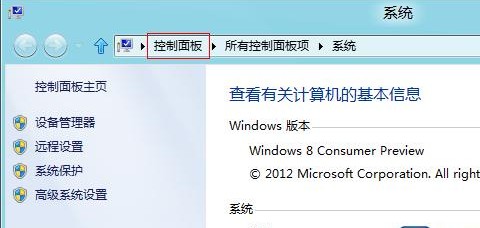
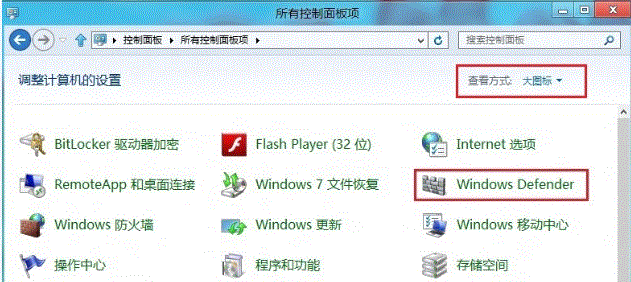
開啟 Windows Defender

  1. Win+Pause/Break → 「控制台」 → 右上角檢視模式改「大圖示」 → 找到「Windows Defender」。
  2. 控制台大圖示Windows Defender Windows Defender 圖示

四大模組功能詳解

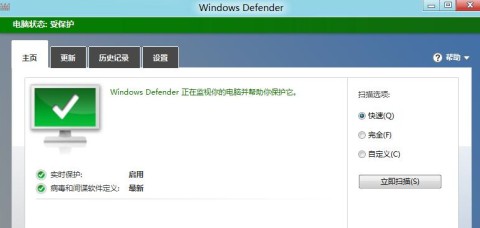
1. 首頁:防護狀態與掃描

  • 綠色勾號 = 即時防護開啟且病毒碼最新。
  • 三種掃描模式:
    • 快速掃描: 僅檢查常見惡意軟體藏身處 (登錄、啟動項、系統資料夾),耗時短。
    • 完整掃描: 掃描所有硬碟檔案與執行中程序,可能耗時 1 小時以上。
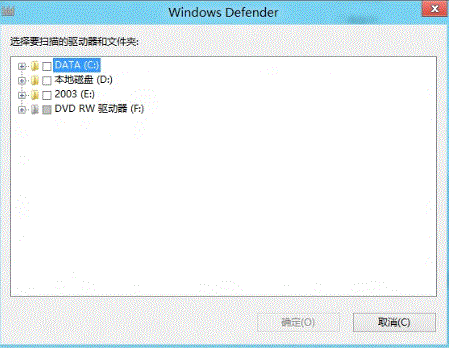
    • 自訂掃描: 僅掃描使用者指定的資料夾/磁碟機。
  • 點選「立即掃描」開始,自訂掃描會彈出資料夾選擇對話框。
Windows Defender 首頁掃描選項 自訂掃描選擇資料夾

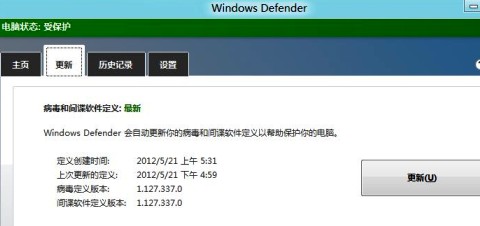
2. 更新:病毒定義更新

  • 顯示上次更新時間,點選「更新」按鈕立即連線下載最新病毒定義。
  • 建議設定 Windows Update 自動更新包含 Defender 定義。
Windows Defender 更新頁面

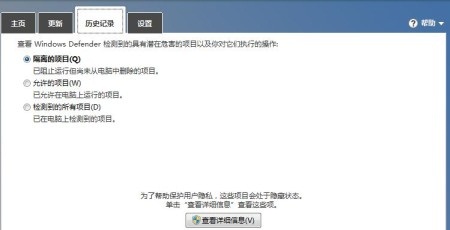
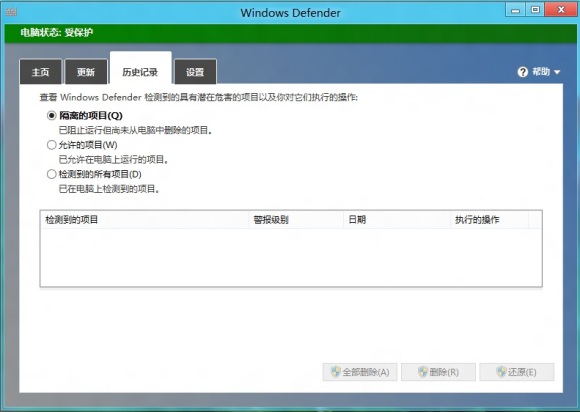
3. 歷程記錄:偵測記錄與處理

  • 列出所有偵測到的威脅與處理動作 (隔離、移除、允許)。
  • 選取項目點選「檢視詳細資訊」可進一步操作 (還原誤判檔案、永久刪除隔離項)。
Windows Defender 歷程記錄 詳細資訊操作

4. 設定:進階防護選項

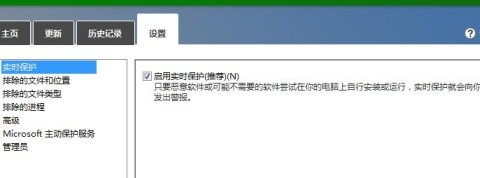
  • A. 即時防護: 啟用/停用即時監控 (建議永遠開啟)。
  • 即時防護設定
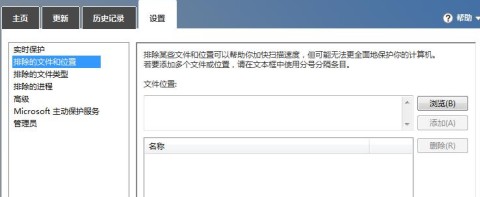
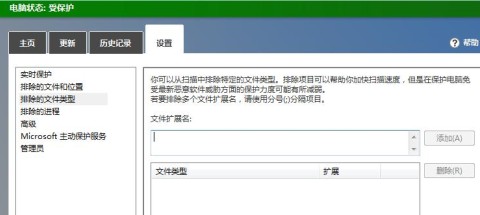
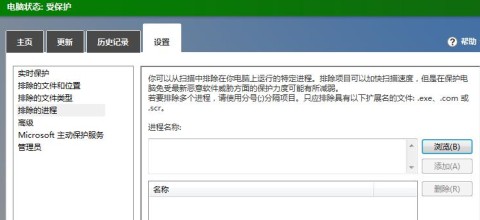
  • B. 排除項目: 排除特定檔案、資料夾、副檔名、進程不掃描,加快掃描速度、避免誤判。
  • 排除項目設定 排除檔案類型 排除進程
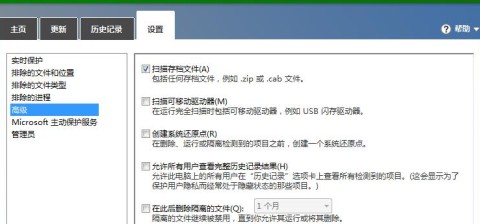
  • C. 進階: 掃描壓縮檔、掃描可移動磁碟、建立系統還原點、所有使用者檢視完整記錄、隔離檔案保留天數。
  • 進階設定選項
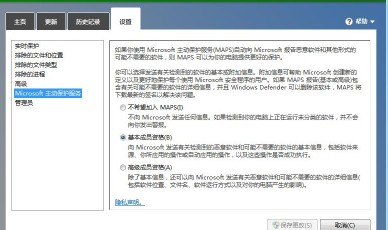
  • D. Microsoft Active Protection Service (MAPS): 參與雲端保護社群,傳送可疑檔案資訊協助改善偵測。
  • MAPS設定
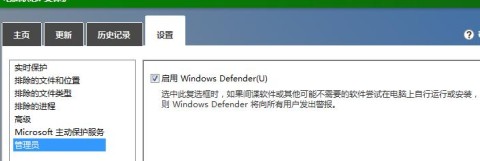
  • E. 管理員: 啟用 Defender 時,若安裝其他防毒軟體會發出警告。
  • 管理員設定
重要提醒:
  • 安裝第三方防毒軟體 (如 Kaspersky、Bitdefender、Norton) 會自動停用 Defender 即時防護,避免衝突。
  • 若僅使用 Defender,請確保 Windows Update 正常運作以取得最新定義。
  • 企業環境建議使用 System Center Endpoint Protection (SCEP) 或 Intune 統一管理。

Copyright © Windows教程網 All Rights Reserved