Windows XP Windows 7 Windows 2003 Windows Vista Windows 綜合教學 Linux 系統教學
Windows 10 Windows 8 Windows 2008 Windows NT Windows Server 電腦軟體教學

Win8 系統檔案修復指令 sfc /scannow?管理員 CMD 掃描修復核心檔案

編輯:Windows 8 系統介紹

Win8 系統功能異常、藍屏、檔案遺失時,微軟官方修復指令 sfc /scannow (System File Checker) 可掃描所有受保護系統檔案完整性,自動從元件存儲替換損毀/遺失檔案,為系統維護必備技能。

操作步驟

  1. 右鍵開始按鈕(或 Win+X)選擇 「命令提示字元 (系統管理員)」 或 「Windows PowerShell (系統管理員)」。
  2. 輸入 sfc /scannow 按 Enter 執行。
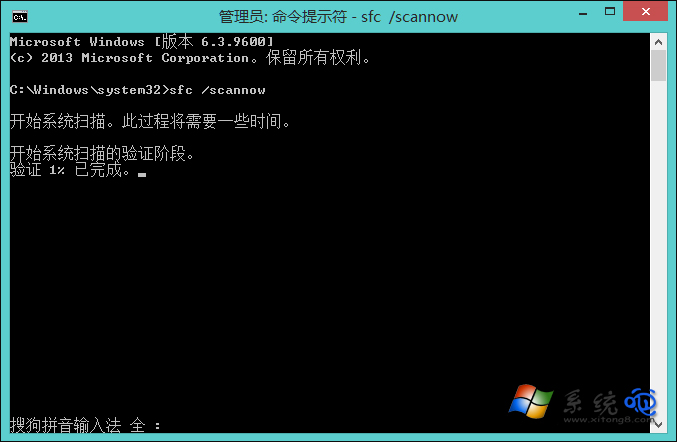
  3. 等待驗證 100% 完成(可能需 5-15 分鐘),勿關閉視窗、勿進行其他操作 避免檔案鎖定導致修復失敗。
  4. 結果解讀:
    • Windows Resource Protection did not find any integrity violations. → 系統檔案完好。
    • Windows Resource Protection found corrupt files and successfully repaired them. → 發現並修復損毀檔案,查看 %windir%\Logs\CBS\CBS.log 詳情。
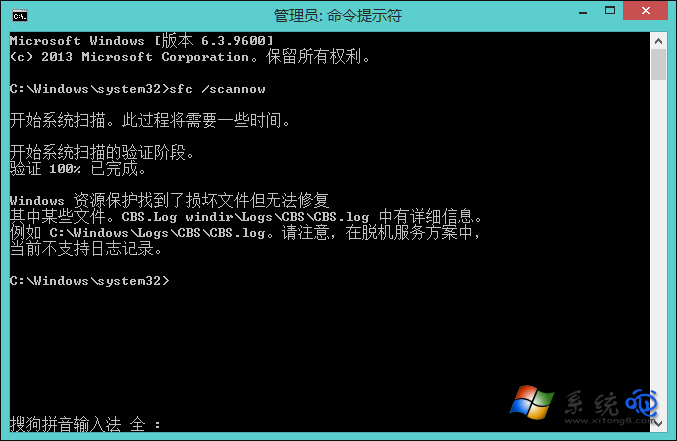
    • Windows Resource Protection found corrupt files but was unable to fix some of them. → 部分無法修復,需執行 DISM /Online /Cleanup-Image /RestoreHealth 修復元件存儲後重跑 SFC。
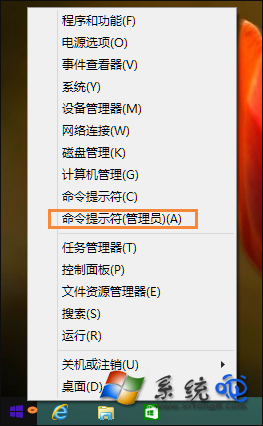
管理員命令提示字元

sfc /scannow 執行中

掃描修復完成

進階組合拳:
DISM /Online /Cleanup-Image /CheckHealth (快速檢查)
DISM /Online /Cleanup-Image /ScanHealth (深度掃描)
DISM /Online /Cleanup-Image /RestoreHealth (修復元件存儲)
→ 完成後再跑 sfc /scannow
此為微軟官方標準「DISM + SFC」雙重修復流程,解決 95% 以上系統檔案問題。

Copyright © Windows教程網 All Rights Reserved