Win7 內建虛擬硬碟 (VHD) 功能,配合 BitLocker 加密,打造隱形加密保險箱:
建立虛擬硬碟
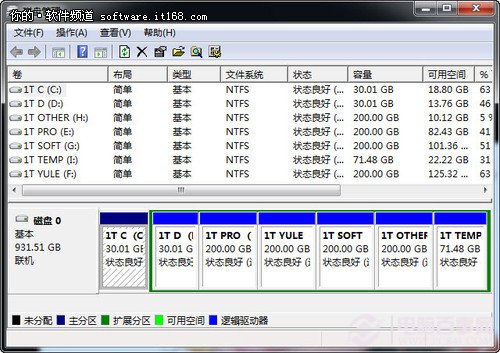
- Win+R 輸入
diskmgmt.msc 開啟磁碟管理。
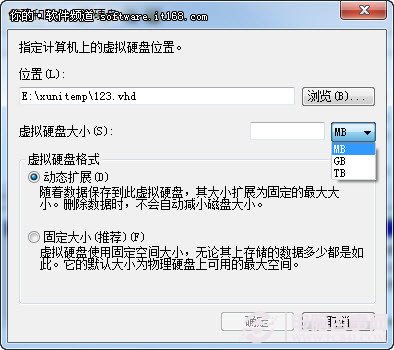
- 「動作」→「建立 VHD」→ 指定位置、大小(動態擴展/固定大小) → 確定。
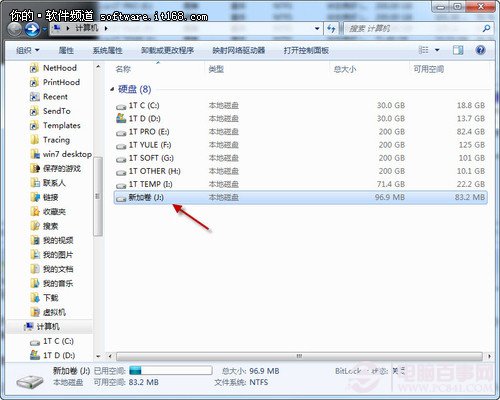
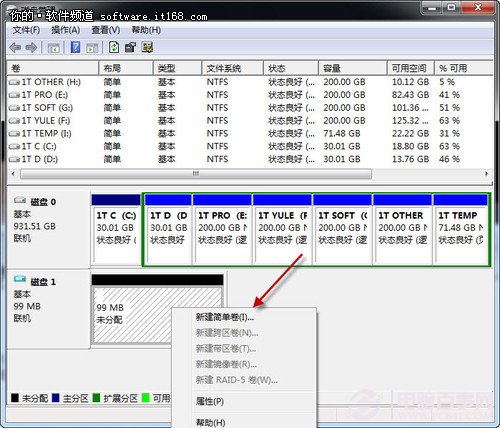
- 右鍵新虛擬硬碟 →「初始化磁碟」 → 右鍵未配置空間 →「新增簡單磁碟區」 → 格式化 (NTFS) → 指派磁碟機代號。
隱藏與加密策略
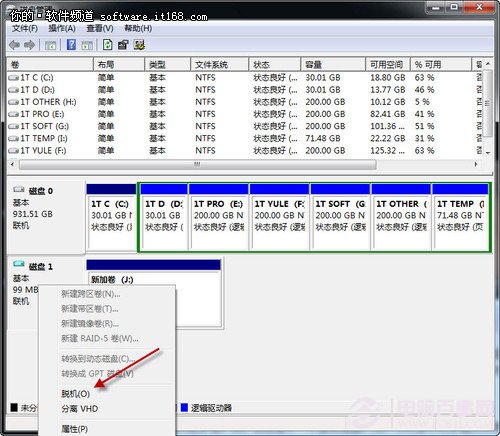
- 離線/分離: 磁碟管理中右鍵虛擬硬碟 →「離線」 (暫時隱藏) 或「分離 VHD」 (徹底從磁碟管理隱藏,需「連結 VHD」才能再見)。
- 偽裝檔名: VHD 檔案可改名為
xinstall.dll 等系統檔名,藏於 C:\Windows 等目錄,極難被發現。
- BitLocker 加密: 右鍵虛擬硬碟磁碟機代號 →「開啟 BitLocker」→ 設定強密碼,加密後無密碼無法掛載讀取。
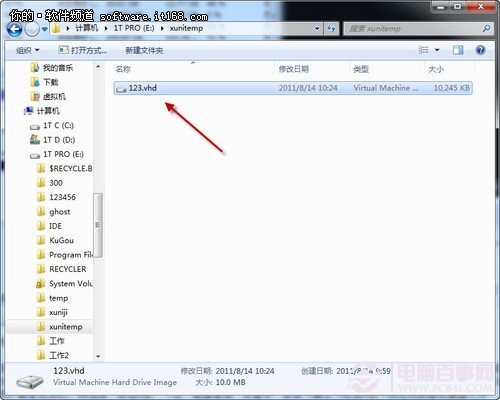
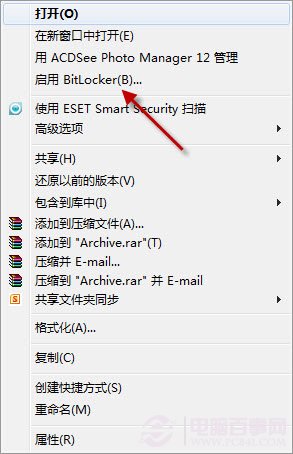
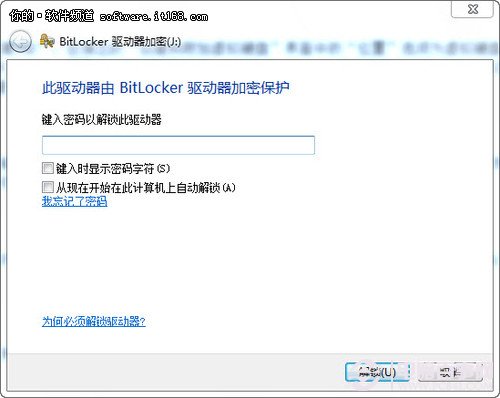
三重防護:物理隱藏 (分離 VHD) + 偽裝檔名 + BitLocker 軍規級加密,私密資料安全無虞。切記備份密碼與 VHD 檔案位置。