Windows 7 超級任務列的縮圖預設:200px 寬、16px 間距、400ms 延遲。覺得太小、太擠、反應太慢?透過修改登錄檔即可全面客製化,甚至能把縮圖拉大到能直接看影片的程度。本文提供完整 VB.NET 原始碼與編譯後工具,一鍵套用、一鍵還原。
| 登錄檔鍵值 | 路徑 | 預設值 | 說明 |
|---|---|---|---|
| MaxThumbSizePx | HKCU\Software\Microsoft\Windows\CurrentVersion\Explorer\Taskband | 200 | 縮圖最大寬度(像素) |
| MinThumbSizePx | 200 | 縮圖最小寬度 | |
| ThumbSpacingXPx | 16 | 水平間距 | |
| ThumbSpacingYPx | 16 | 垂直間距 | |
| TopMarginPx | 16 | 上邊距 | |
| BottomMarginPx | 16 | 下邊距 | |
| LeftMarginPx | 16 | 左邊距 | |
| RightMarginPx | 16 | 右邊距 | |
| ExtendedUIHoverTime | HKCU\Software\Microsoft\Windows\CurrentVersion\Explorer\Advanced | 400 | 滑鼠停留毫秒數才顯示縮圖 |
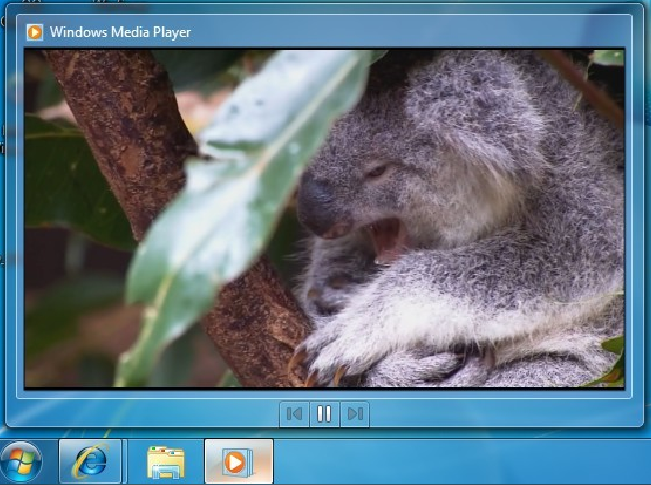
放大縮圖後可直接看影片:
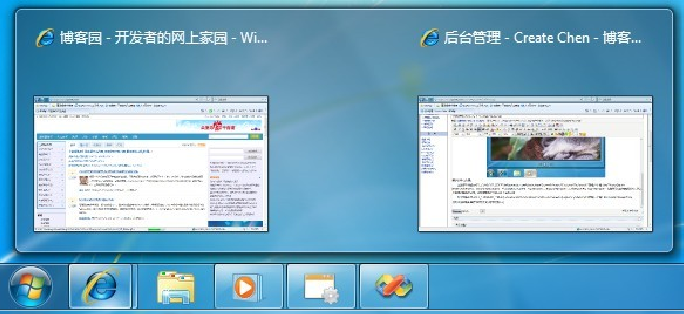
調整 X/Y Spacing 後間距明顯變大:
Private Sub btnApplySettings_Click(...)
    My.Computer.Registry.SetValue(taskbandPath, "MaxThumbSizePx", maxSizeTrackBar.Value, RegistryValueKind.DWord)
    ' ... 其餘 7 個 Taskband 參數 ...
    My.Computer.Registry.SetValue(advancedPath, "ExtendedUIHoverTime", dtTrackBar.Value, RegistryValueKind.DWord)
    ' 重啟 explorer.exe 即時生效
    For Each p As Process In Process.GetProcessesByName("explorer")
        p.Kill()
    Next
    Process.Start("explorer.exe")
End Sub
Private Sub btnRestoreDefaults_Click(...)
    My.Computer.Registry.SetValue(taskbandPath, "MaxThumbSizePx", 200, RegistryValueKind.DWord)
    ' ... 全部還原為預設值 ...
    My.Computer.Registry.SetValue(advancedPath, "ExtendedUIHoverTime", 400, RegistryValueKind.DWord)
    ' 同樣重啟 explorer.exe
End Sub
Imports Microsoft.Win32mainForm 包含 9 個 TrackBar + TextBox 雙向綁定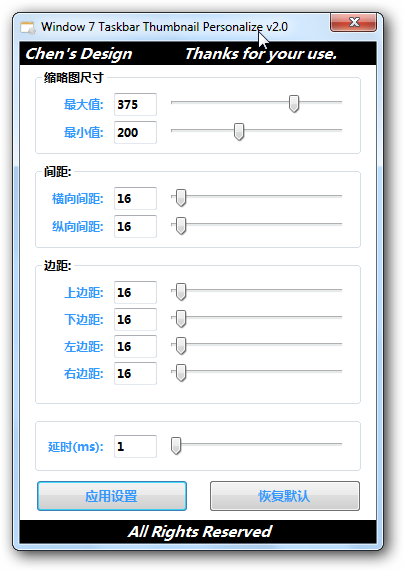
修改登錄檔後無需重開機,僅重啟 explorer.exe 即時生效,極其方便微調。