Windows XP Windows 7 Windows 2003 Windows Vista Windows 綜合教學 Linux 系統教學
Windows 10 Windows 8 Windows 2008 Windows NT Windows Server 電腦軟體教學

Windows 7 修改資料夾背景圖片/顏色:Windows 7 Style Builder 進階美化

編輯:Win7 系統應用技巧

厭倦資料夾單調白底?使用 Windows 7 Style Builder 修改視覺樣式資源,為資料夾背景套用自訂圖片或顏色,打造專屬視覺風格。

操作流程

  1. 準備高解析度背景圖片 (建議 1920×1080 以上),避免拉伸變形。
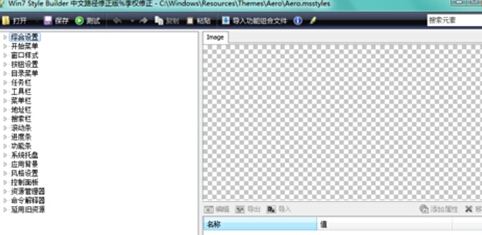
  2. 下載安裝 Windows 7 Style Builder (第三方視覺樣式編輯器)。
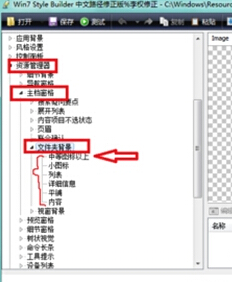
  3. 開啟軟體 →「總管」→「主窗格」→「資料夾背景」→ 六種檢視模式 (圖示、清單、詳細資料、平鋪、內容、預設) 分別設定。
  4. 以「平鋪」模式為例:點「新增屬性」→ 匯入圖片 → 設定類型/屬性值 → 確定儲存主題檔 (.msstyles)。
  5. 套用主題:雙擊匯出的 .msstyles 或用主題修補工具 (如 Universal Theme Patcher) 系統級套用。
風險提示:修改系統視覺樣式需修補 uxtheme.dll、themeui.dll、themeservice.dll 簽章驗證,可能導致系統不穩或更新後失效。建議備份系統或建立還原點再操作。單純更換桌面背景/視窗色彩請用內建「個人化」功能,免風險。

Copyright © Windows教程網 All Rights Reserved