Excel 內建修復引擎可修復大多數檔案結構錯誤,操作簡單無需第三方工具。
修復步驟
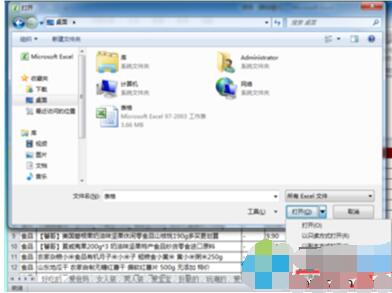
- 開啟 Excel →「檔案」→「開啟」。
- 選取損壞檔案,點擊「開啟」右側下拉箭頭 → 選「開啟並修復」。
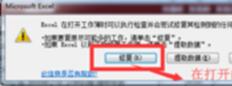
- 對話框點「修復」,Excel 會嘗試重建活頁簿結構。
- 完成後視窗點「關閉」,檔名後會顯示「[已修復]」標記。

若內建修復失敗
- 嘗試用 OpenOffice/LibreOffice Calc 開啟並另存為 .xlsx。
- 或用線上修復服務(如 RecoveryToolbox for Excel),但涉及機密資料請慎用。
- 平時養成「自動儲存」與「備份」習慣:檔案 → 選項 → 儲存 → 勾選「建立備份檔」。