自製 BAT 批次檔可深度清理 Windows 7 系統垃圾檔案,無需安裝第三方軟體,操作透明且可自訂清理範圍。
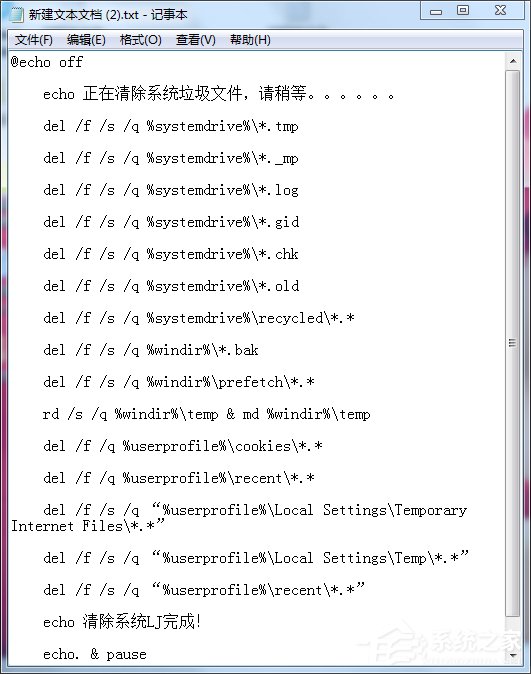
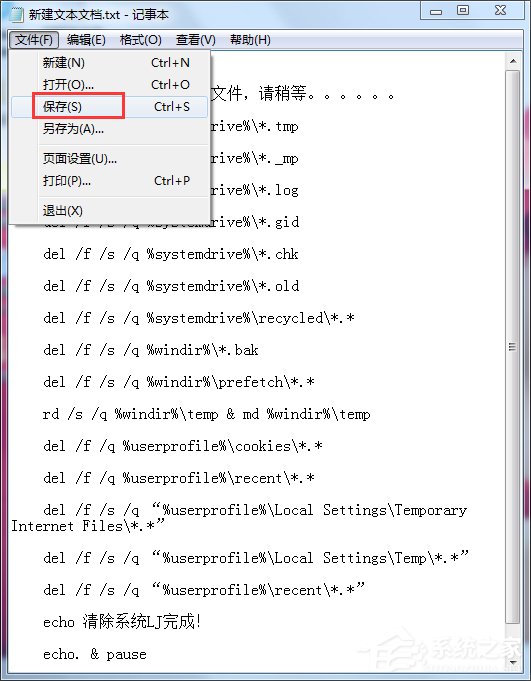
清除系統垃圾.bat(副檔名必須為 .bat),儲存類型選「所有檔案」,建議存放桌面。@echo off
echo 正在清除系統垃圾檔案,請稍等......
del /f /s /q %systemdrive%\*.tmp
del /f /s /q %systemdrive%\*._mp
del /f /s /q %systemdrive%\*.log
del /f /s /q %systemdrive%\*.gid
del /f /s /q %systemdrive%\*.chk
del /f /s /q %systemdrive%\*.old
del /f /s /q %systemdrive%\recycled\*.*
del /f /s /q %windir%\*.bak
del /f /s /q %windir%\prefetch\*.*
rd /s /q %windir%\temp & md %windir%\temp
del /f /q %userprofile%\cookies\*.*
del /f /q %userprofile%\recent\*.*
del /f /s /q "%userprofile%\Local Settings\Temporary Internet Files\*.*"
del /f /s /q "%userprofile%\Local Settings\Temp\*.*"
del /f /s /q "%userprofile%\recent\*.*"
echo 清除系統垃圾完成!
echo. & pause

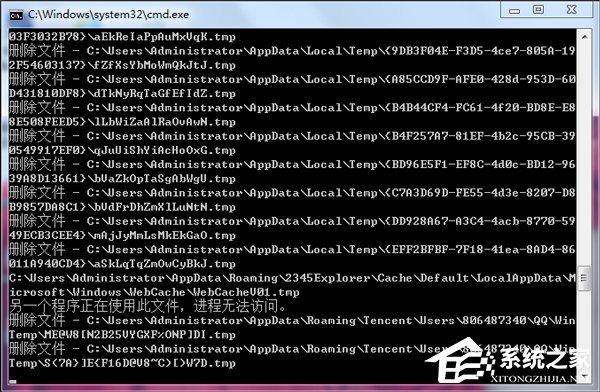
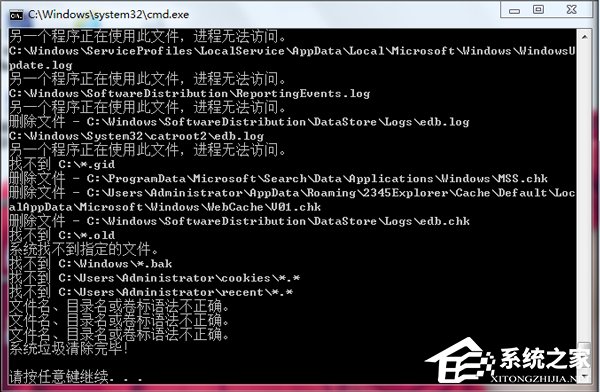
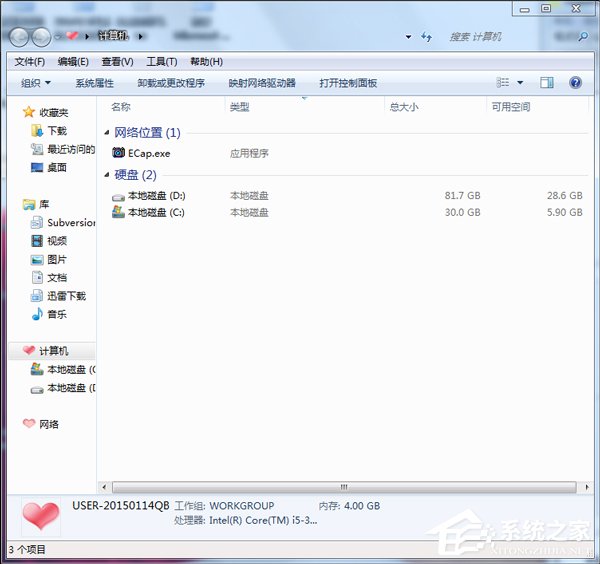
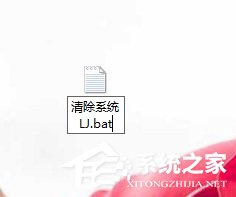
注意:執行前請關閉所有程式;prefetch 清理後首次開機會稍慢(需重新建立預讀取),屬正常現象。建議每月執行一次。
Win7 系統時間無法修改怎麼辦?匯入登錄檔強制修正時區與時間
Win7 系統 360 免費 WiFi 建立失敗?驅動修復全攻略
Windows 7 六大版本功能差異全解析:家庭進階版與專業版為雙主力,旗艦版非必選
Win7 WinRAR 修復損壞壓縮檔:內建修復功能還原受損 RAR/ZIP
Windows 7 開機藍屏 0x00000024 (NTFS_FILE_SYSTEM) 完整排除指南
Win7 無法刪除桌面 IE 圖示?群組原則啟用「隱藏桌面上的 Internet Explorer 圖示」強制移除