Windows 7 IE 瀏覽器點選「工具」→「網際網路選項」無反應,或控制台「網際網路選項」雙擊無法開啟。常因群組原則「停用網際網路選項功能表選項」被啟用(可能由優化軟體/惡意程式修改)。於 gpedit.msc 將其設為「未設定」即可恢復。
gpedit.msc 開啟群組原則編輯器。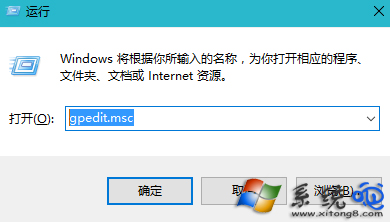
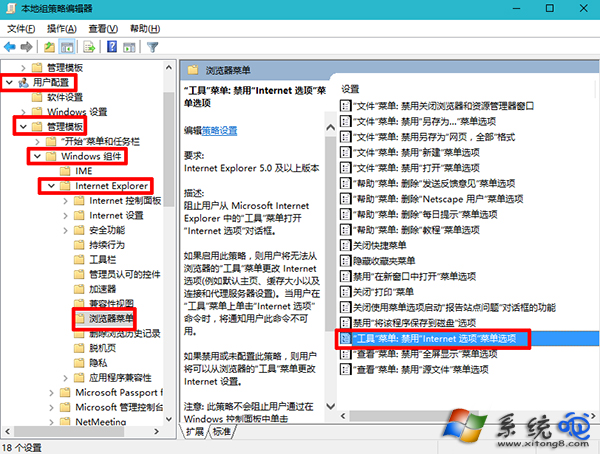
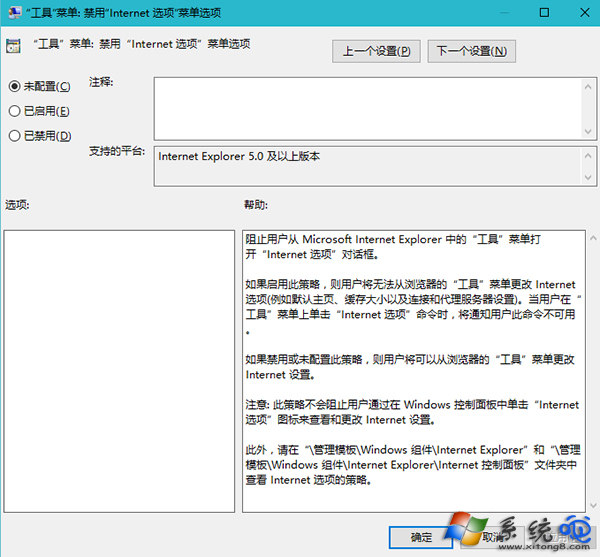
執行 regedit 定位至:
HKEY_CURRENT_USER\Software\Policies\Microsoft\Internet Explorer\Restrictions
找到 NoBrowserOptions DWORD 值,刪除或設為 0,重開機生效。
Win7 開機硬碟自檢 (chkdsk) 原因與對策:讓它跑完、重新分區重灌、註冊表關閉 BootExecute
Win7 找不到 DVD/CD-ROM 光碟機?兩大修復:註冊表 UpperFilters/LowerFilters 與 bcdedit 指令
華碩筆電升級 Win7 後睡眠功能異常完美解決方案:BIOS、驅動與電源管理三管齊下
Win7 三大疑難雜症修復:Win+E 無效、USB 重插不認、DVD 光碟機消失
Win7 Windows Easy Transfer:重灌前備份設定與資料,重灌後一鍵還原
Win7 輸入法切換 Ctrl+Shift 失效解決:殺毒、檢查輸入法設定、重新啟動電腦、重裝系統四級方案