Windows XP Windows 7 Windows 2003 Windows Vista Windows 綜合教學 Linux 系統教學
Windows 10 Windows 8 Windows 2008 Windows NT Windows Server 電腦軟體教學

Win7 開機報錯 hal.dll 損壞或遺失?修復 boot.ini 引導配置完整教學

編輯:Windows 7 系統介紹

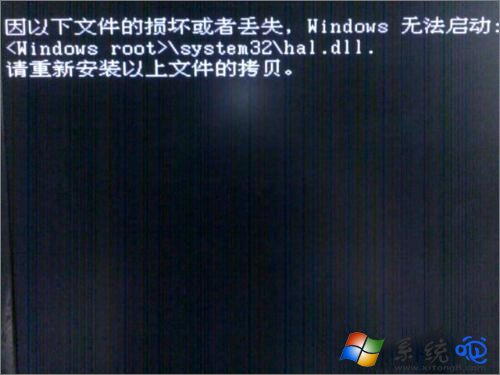
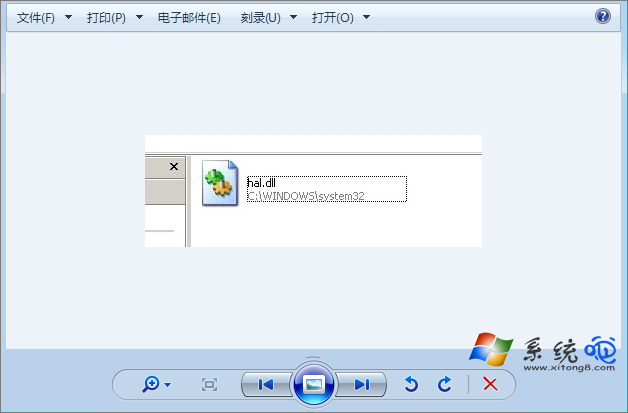
Windows 7 開機顯示「hal.dll 損壞或遺失」導致無法啟動,實際上 hal.dll 檔案通常仍存在於 C:\Windows\System32,真正原因是 C:\boot.ini 引導配置檔案格式錯誤或遺失,導致系統找不到正確的啟動分區與路徑。本文提供從 DOS 編輯 boot.ini 到使用修復控制台重建的多種方案。

核心原因

boot.ini 格式不正確 → 系統誤判 Windows 未安裝在 C 槽 → 搜尋其他路徑找不到 hal.dll → 啟動失敗。修復關鍵在於重建正確的 boot.ini。

方案一:DOS 環境手動編輯 boot.ini(適用有 DOS 啟動碟/USB)

  1. 以 DOS 啟動碟/USB 進入純 DOS 環境。
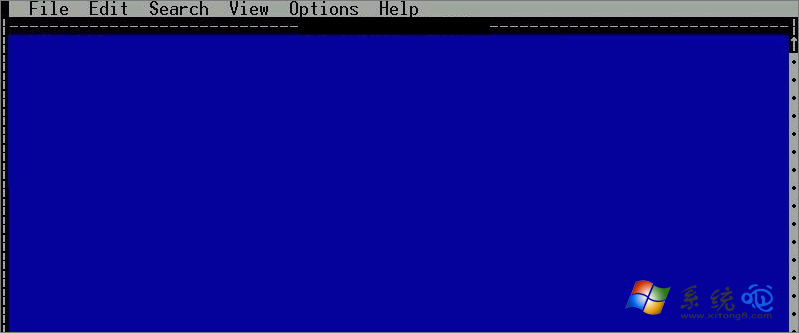
  2. 執行 edit.com 或 edit.exe 開啟文字編輯器。
  3. 開啟 C:\boot.ini,修正為標準格式(範例):
    [boot loader]
    timeout=30
    default=multi(0)disk(0)rdisk(0)partition(1)\WINDOWS
    [operating systems]
    multi(0)disk(0)rdisk(0)partition(1)\WINDOWS="Windows 7" /fastdetect
  4. 存檔退出,重新開機。

方案二:Windows 修復控制台指令修復

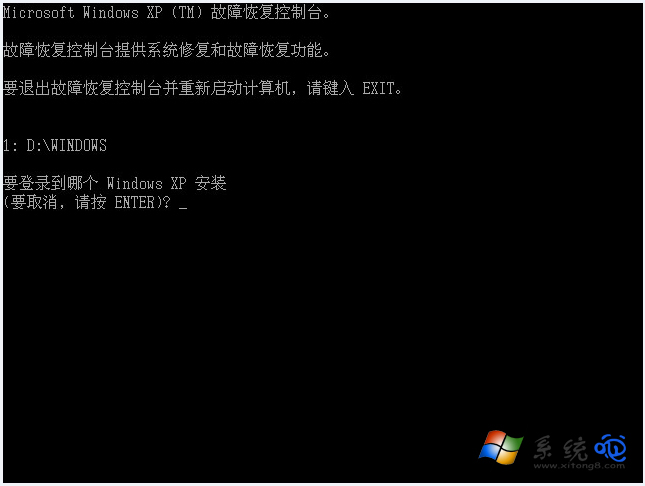
  1. 插入 Windows 7 安裝光碟/USB,啟動修復模式 →「命令提示字元」。
  2. 依序執行:
    fixboot(修復開機磁區)
    bootcfg /rebuild(掃描並重建 boot.ini)
  3. 若 bootcfg /rebuild 失敗,嘗試 bootcfg /add 手動新增啟動項目。

方案三:他機建立 boot.ini 再複製覆蓋(最簡單)

  1. 在正常 Windows 7 電腦上,依上述標準格式建立 boot.ini 文字檔。
  2. 連同一份 hal.dll(從 C:\Windows\System32 複製)放入 USB 隨身碟。
  3. 故障電腦以 DOS 啟動碟/USB 進入 DOS,掛載 USB 並執行:
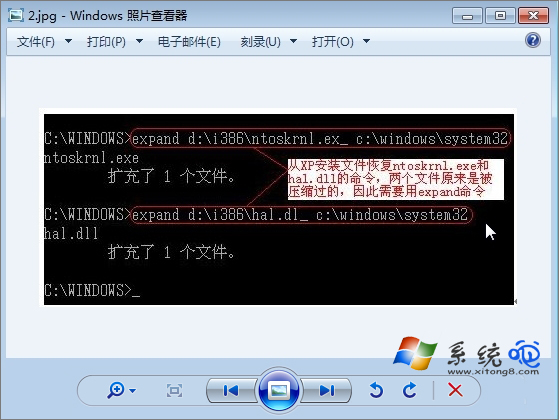
    copy X:\hal.dll C:\Windows\System32\hal.dll
    copy X:\boot.ini C:\
    (X 為 USB 磁碟機代號)
  4. 重新開機驗證。

hal.dll 錯誤畫面

DOS edit 編輯 boot.ini

修復控制台 bootcfg

USB 複製檔案

DOS copy 指令

補充檢查項目

  • BIOS 中硬碟模式(AHCI/IDE)是否與安裝時一致。
  • 記憶體模組是否鬆動或損壞(嘗試拔插/擦拭金手指/換槽測試)。
  • 超頻設定是否導致系統檔案損壞(建議載入 BIOS 預設值)。
Copyright © Windows教程網 All Rights Reserved