Windows XP Windows 7 Windows 2003 Windows Vista Windows 綜合教學 Linux 系統教學
Windows 10 Windows 8 Windows 2008 Windows NT Windows Server 電腦軟體教學

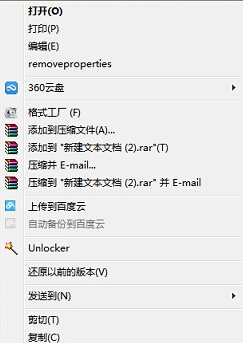
Win7 右鍵選單消失「開啟方式」?登錄重建 Shell\OpenWith 捷徑修復

編輯:Windows 7 系統介紹

修復步驟

  1. Win+R → regedit。
  2. 定位:
    HKEY_CLASSES_ROOT\*
  3. 右鍵 * → 新增 → 機碼 → 命名 Shell(若已存在略過)。
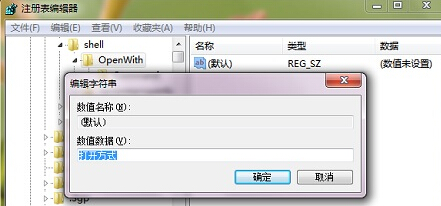
  4. 右鍵 Shell → 新增 → 機碼 → 命名 OpenWith。
  5. 雙擊 OpenWith 右側 (預設) 字串值,數值資料設為:開啟方式。
  6. 關閉登錄編輯器,右鍵檔案即可看到「開啟方式」選項。
右鍵選單缺少開啟方式 登錄重建 Shell OpenWith

批次檔一鍵修復

將以下內容存為 FixOpenWith.reg 雙擊匯入:

Windows Registry Editor Version 5.00

[HKEY_CLASSES_ROOT\*\Shell\OpenWith]
@="開啟方式"

其他右鍵選單缺項修復

  • 同樣原理可修復「傳送到」「編輯」「列印」等缺失項目,對應建立 SendTo、Edit、Print 子機碼。
  • 若大量缺失,建議執行 sfc /scannow 修復系統檔案,或修復安裝 Windows。
Copyright © Windows教程網 All Rights Reserved