安裝 Microsoft Security Essentials (MSE) 後,右鍵選單缺少「使用 Microsoft Security Essentials 掃描」選項,通常是因優化軟體或精簡版系統修改了登錄表鍵值。透過匯入修正的登錄檔即可快速恢復。
Windows Registry Editor Version 5.00

[HKEY_CLASSES_ROOT\*\shellex\ContextMenuHandlers\EPP]
@="{09A47860-11B0-4DA5-AFA5-26D86198A780}"

[HKEY_CLASSES_ROOT\Directory\shellex\ContextMenuHandlers\EPP]
@="{09A47860-11B0-4DA5-AFA5-26D86198A780}"

[HKEY_LOCAL_MACHINE\SOFTWARE\Classes\Drive\shellex\ContextMenuHandlers\EPP]
@="{09A47860-11B0-4DA5-AFA5-26D86198A780}"
MSE Fix.reg(編碼選 ANSI,儲存類型選「所有檔案」)。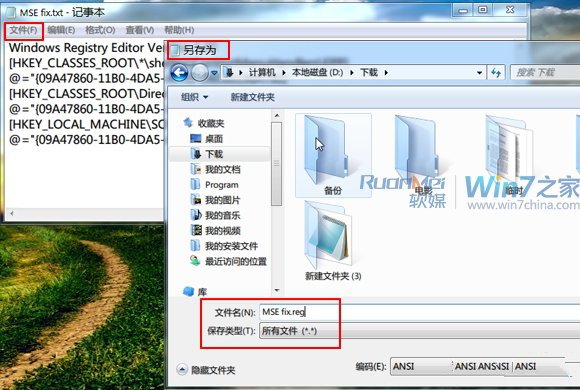
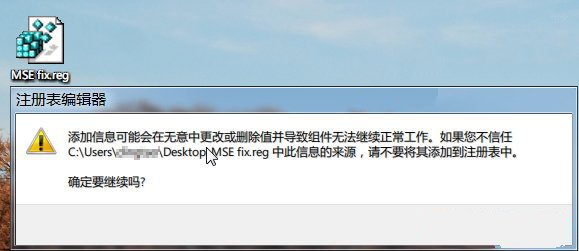
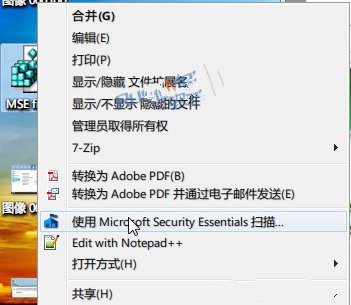
建議操作前先備份登錄表,若出現異常可還原。
重裝 Win7 後電腦變慢?三大主因與解決對策(純淨版系統、硬體規格、虛擬記憶體)
Win7 系統保護無法開啟報錯 0x8007007B?切換選項順序即可修復
IE 8 九大隱藏功能:相容性檢視、InPrivate 隱私、加速器、廣告過濾、鍵盤選取、狀態列探索、建議網站
Windows 7 執行 DOS 指令提示「非內部或外部命令」?修復 PATH 環境變數解決
Windows 8 將原生支援 USB 3.0:Intel 與微軟合作推動普及
Win7 設定多核心 CPU 開機啟用:msconfig 啟用最大處理器數量與記憶體