Windows 7 系統下,Chrome 與 Firefox 瀏覽器皆提供密碼管理功能。若忘記某網站密碼,可透過以下步驟查看已儲存的明文密碼。
Google Chrome
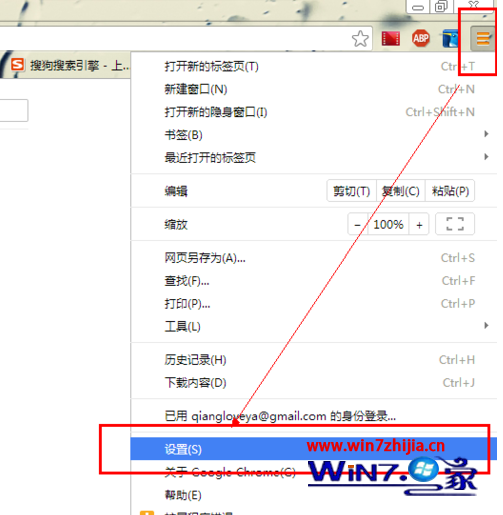
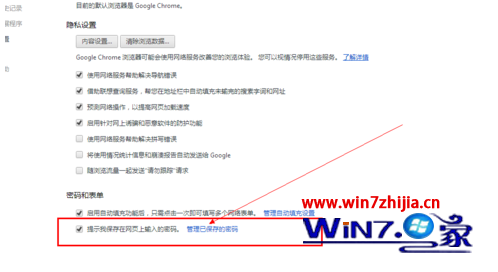
- 開啟 Chrome,點選右上角「更多」(三個點)→「設定」。
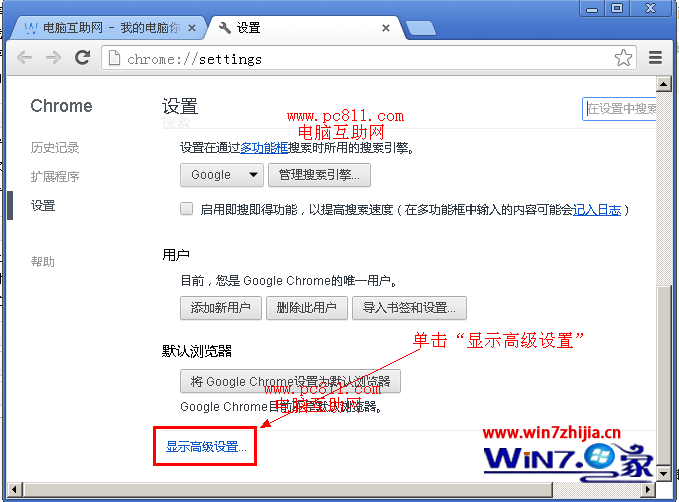
- 捲動至底部,點選「進階設定」。
- 在「密碼和表單」區塊,點選「管理密碼」。
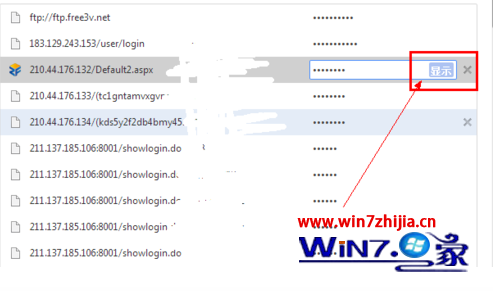
- 在清單中找到目標網站,點選右側「顯示」(眼睛圖示),輸入 Windows 登入密碼/驗證指紋後即可看見明文密碼。
Mozilla Firefox
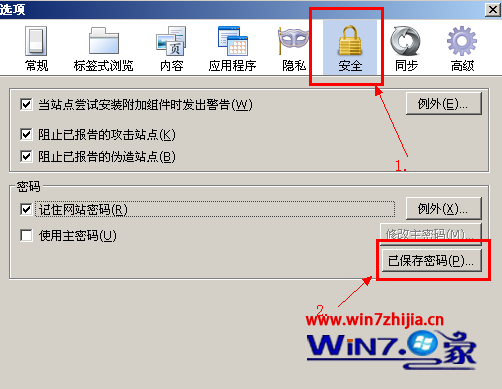
- 開啟 Firefox,點選選單(三條線)→「選項」→「隱私權與安全性」。
- 捲動至「登入與密碼」區塊,點選「儲存的登入資訊」。
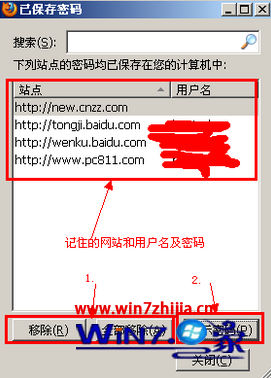
- 在彈出視窗中點選「顯示密碼」,確認提示點選「是」,即可看見所有網站明文密碼。
安全提醒
- 查看密碼需通過 Windows 使用者驗證,請妥善保管帳戶密碼。
- 建議啟用瀏覽器「主要密碼」(Firefox)或 Google 帳戶雙因子驗證(Chrome 同步)增強保護。
- 公開/共用電腦切勿儲存密碼,使用無痕模式瀏覽。