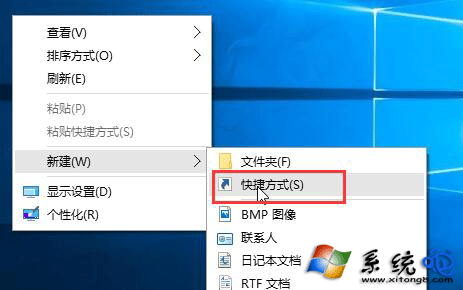
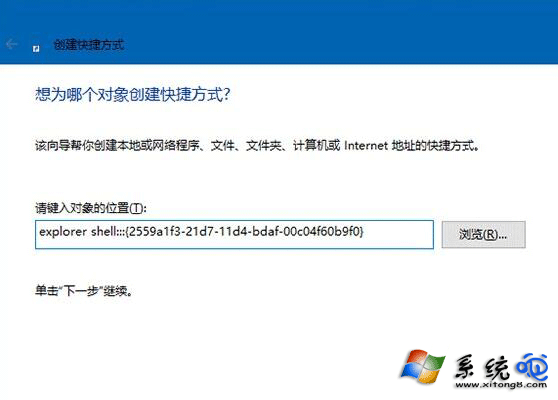
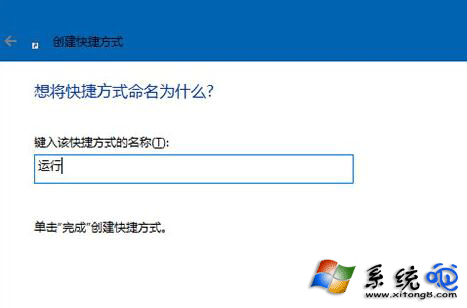
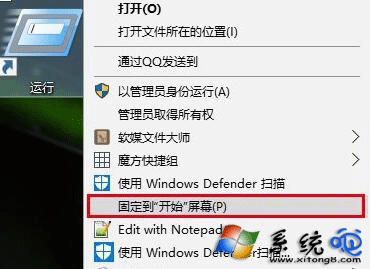
Windows 10 「執行」視窗 (Win+R) 是快速啟動程式、開啟系統工具的神器,將其釘選到開始功能表磚塊區,滑鼠點擊即可喚起,無需記憶熱鍵。
explorer shell:::{2559a1f3-21d7-11d4-bdaf-00c04f60b9f0}
延伸應用:同樣方法可釘選「群組原則」 (C:\Windows\System32\gpedit.msc 右鍵 → 釘選到開始螢幕)、「控制台」、「裝置管理員」等常用工具,打造專屬高效開始功能表。
C:\Windows\System32\gpedit.msc
Win10 設定命令提示字元視窗顏色與字體:個人化您的 CMD 體驗
Windows 10 快速登出操作兩大法:右鍵開始選單與 Alt+F4 快捷鍵
Win10 更新 10532 出現 0xc1900204 錯誤?重設 Windows Update 元件完整解法
Win10 升級後網速變慢?更新網卡驅動與調整 QoS 預留頻寬解決
Win10 手動安裝 CAB/MSU 離線更新包完整指令教學:靜默安裝、免重啟、路徑參數詳解
Win10 滾動條太細看不清?教你用登錄檔自訂寬度與高度
Win10 內建「入門」App 影片教學:開始選單、商店、Modern App、Cortana 操作示範
Windows 10 Build 9879 藍屏 0xAB 修補程式 KB3019269 釋出