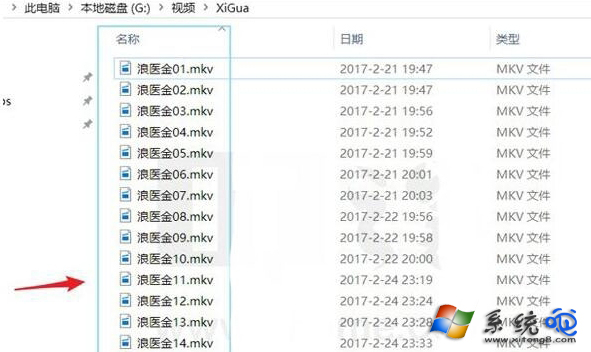
下載的劇集檔名為「浪醫金01、浪醫金02...」,想批次改為「浪漫醫生金師傅01...」。善用 Win10 內建 PowerShell 搭配記事本撰寫腳本,即可秒殺大量檔案重命名,無需安裝額外軟體。
$Path:目標資料夾路徑(固定不變)。$Filter:篩選條件(如 *.mkv 只處理 MKV 檔)。$oldtext:舊關鍵字(如「浪醫金」)。$newtext:新關鍵字(如「浪漫醫生金師傅」)。核心指令:
Get-ChildItem -Path $Path -Include $Filter | Rename-Item -NewName { $_.Name -replace $oldtext, $newtext }
$Path = "D:\Video\Drama"
$Filter = "*.mkv"
$oldtext = "浪醫金"
$newtext = "浪漫醫生金師傅"

Get-ChildItem -Path $Path -Include $Filter | ForEach-Object {
    Rename-Item -Path $_.FullName -NewName ($_.Name -replace $oldtext, $newtext)
}

Rename.ps1(編碼選 UTF-8)。.\Rename.ps1 執行。PowerShell 優勢: 物件導向管線、支援 .NET、語法易讀,是系統管理員自動化運維神器。日後只需修改變數即可複用。