Windows 10 早期版本將所有視窗標題列固定為白色,缺乏個性化選項。透過替換系統主題資源檔 (aero.msstyles),可恢復隨主題色彩變化的標題列。操作需修改系統受保護檔案,建議先建立系統還原點。
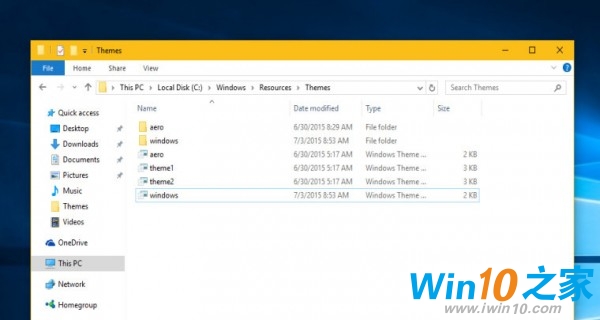
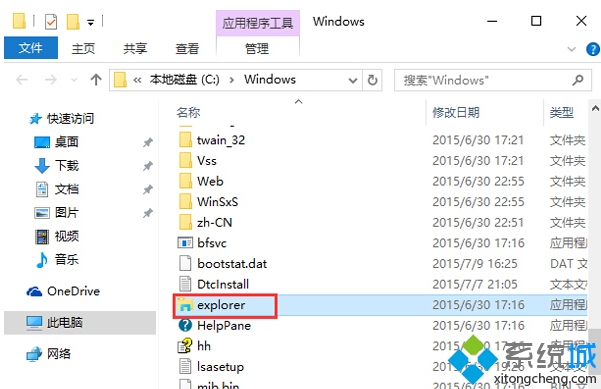
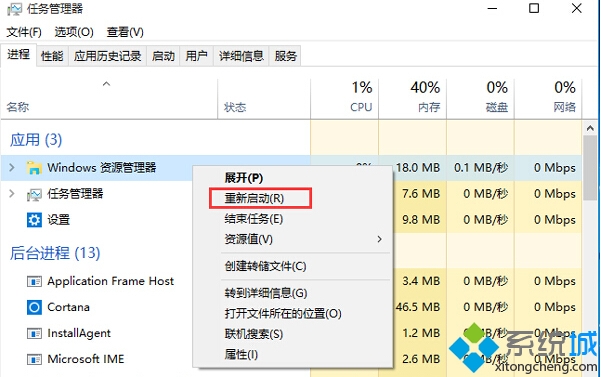
C:\Windows\Resources\Themes,複製 aero 資料夾並重新命名 (如 mytheme)。aero.msstyles 重命名為 mytheme.msstyles。zh-TW 或 zh-CN),將 aero.msstyles.mui 重命名為 mytheme.msstyles.mui。aero.theme 到桌面,重命名為 mytheme.theme,用記事本開啟修改路徑:Path=%ResourceDir%\Themes\mytheme\mytheme.msstylesmytheme.theme,標題列即可跟隨強調色彩變化。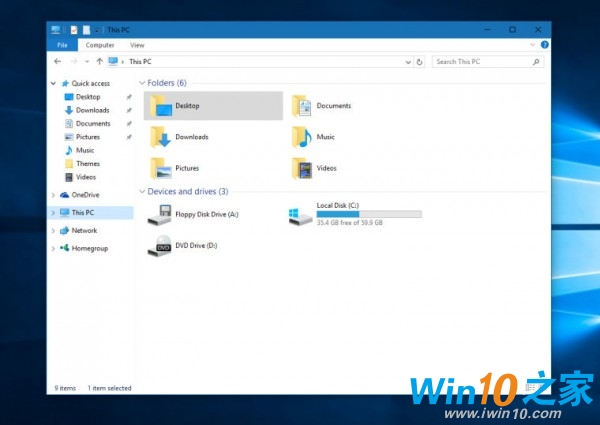
若欲恢復預設,切換至任一內建主題即可。
Win10 正式版免費升級政策:Win7/8.1 家用版/專業版一年免費,企業版不適用,硬體門檻視功能而定
Windows 10 無法關機或重開機?四種強制關機/重啟替代方案
Win 10 工作管理器顯示不全?安裝解碼器並刪除三個系統檔案修復
Win10 升級後禁用網路連線報錯?命令列重置 Winsock 與 TCP/IP 解決
Win10 存取共用資料夾提示「沒有權限使用網路資源」?新增 Windows 憑證 Guest 帳號解決
Windows 10 Build 10130 新變化:Cortana 介面大改版、通知動畫變白、電池視窗支援主題色