Windows XP Windows 7 Windows 2003 Windows Vista Windows 綜合教學 Linux 系統教學
Windows 10 Windows 8 Windows 2008 Windows NT Windows Server 電腦軟體教學
您现在的位置: Windows教程網 >> Windows教程 >  >> 電腦軟體教學 >> 網路工具

.eml 檔案怎麼打開?Outlook/Foxmail/記事本/郵箱轉發四大方法全解析

編輯:網路工具

方法一:Outlook 開啟(最標準)

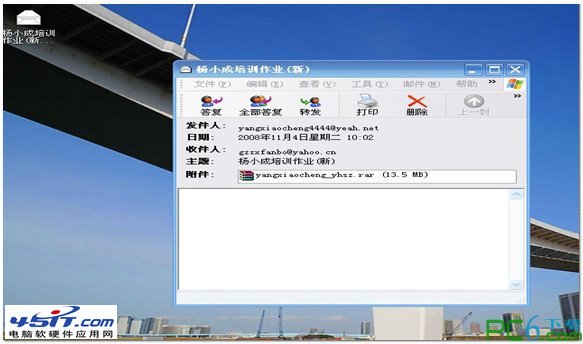
  1. 找到 .eml 檔案 → 右鍵「開啟方式」→ 選擇 Outlook。


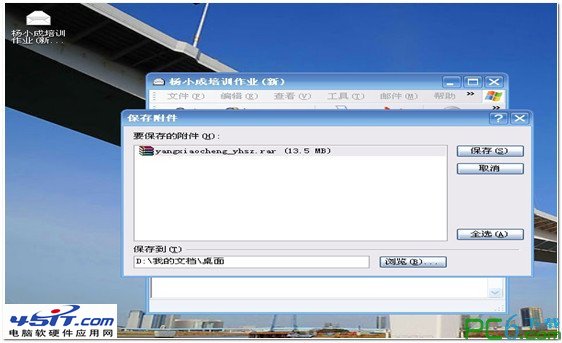
  2. Outlook 開啟郵件 →「檔案」→「另存附件」→ 指定資料夾保存附件。

eml檔案
右鍵選擇Outlook
Outlook開啟eml
另存附件

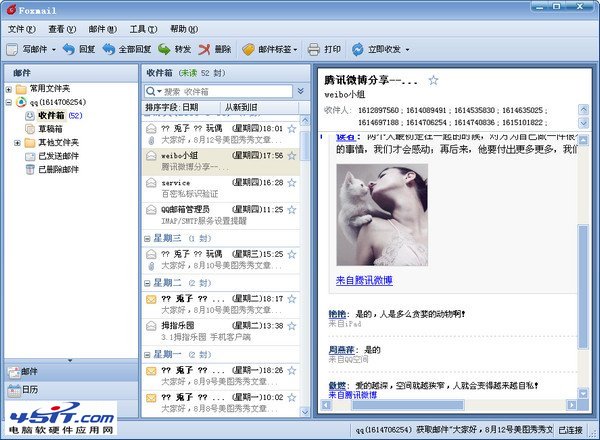
方法二:Foxmail 開啟(輕量級)

  1. Foxmail 主介面 →「工具」→「導入郵件」→ 選擇 .eml 檔案導入。
  2. 或直接拖曳 .eml 到 Foxmail 資料夾列表。

Foxmail開啟eml

方法三:記事本查看原始內容(無需郵件客戶端)

  1. 右鍵 .eml →「開啟方式」→「記事本」。
  2. 首行 From: 寄件人,第二行 To: 收件人,第四行 Date: 發送時間。
  3. 正文為 ASCII/HTML/多段編碼,需配合 Content-Type 標頭解碼。

方法四:郵箱轉發大法(最簡單看正文/附件)

  1. 將 .eml 作為附件發送給自己的 QQ 郵箱/網易郵箱/Gmail。
  2. 登入郵箱網頁版,直接預覽/下載正文與附件,無需安裝任何軟體。

.eml 格式深度解析

  • 遵循 RFC 822/MIME 標準,郵件客戶端通用格式。
  • 標頭:欄位: 值 格式,關鍵標頭 Content-Type 指定編碼(如 text/html;charset=iso-8859-1)。
  • 若 Content-Type: multipart/mixed 為多段郵件,需提取 text/html 段落作為正文。
  • HTML 正文建議補充 <meta http-equiv="Content-Type" content="text/html;charset=..."> 以正確顯示中文。

Copyright © Windows教程網 All Rights Reserved