Windows XP Windows 7 Windows 2003 Windows Vista Windows 綜合教學 Linux 系統教學
Windows 10 Windows 8 Windows 2008 Windows NT Windows Server 電腦軟體教學
您现在的位置: Windows教程網 >> Windows教程 >  >> 電腦軟體教學 >> 伺服器技術 >> 關於伺服器

LSI 8708E SAS RAID 卡 MSM 管理軟體刪除陣列操作圖解

編輯:關於伺服器

適用環境

  • 控制器:LSI 8708E (MegaRAID SAS 8708E)
  • 管理軟體:MegaRAID Storage Manager (MSM) 最新版
  • 作業系統:Windows / Linux 均適用 (MSM 為 Java 跨平台)

刪除虛擬磁碟 (陣列) 標準步驟

  1. 開啟 MSM 主控台,連線至目標控制器
  2. 左側導航樹展開:`Controllers` → `Controller #` → `Logical` → `Virtual Drives`
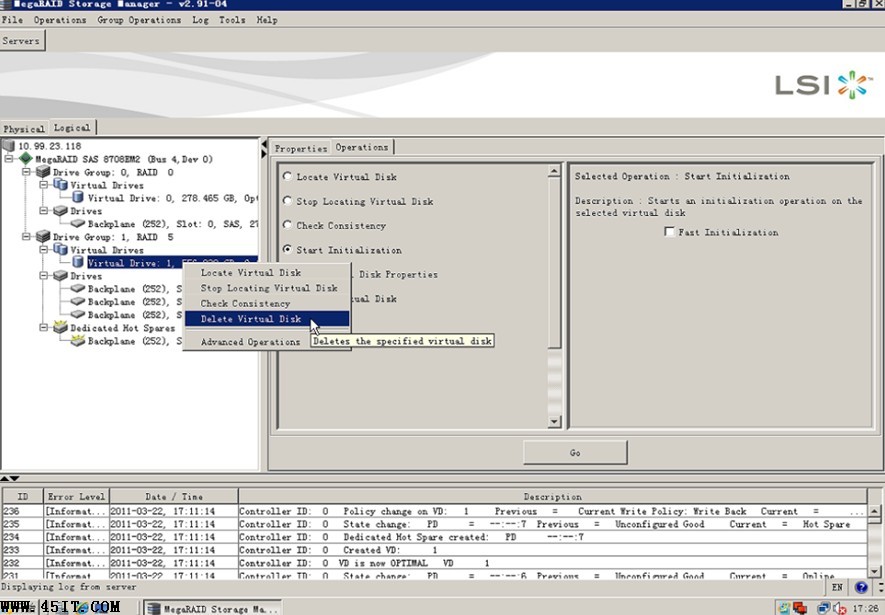
  3. 右鍵點選目標 **Virtual Drive** (顯示 RAID 等級、容量、狀態)
  4. 選擇 **「Delete Virtual Drive」**

雙重確認機制 (防誤刪)

MSM 刪除虛擬磁碟右鍵選單

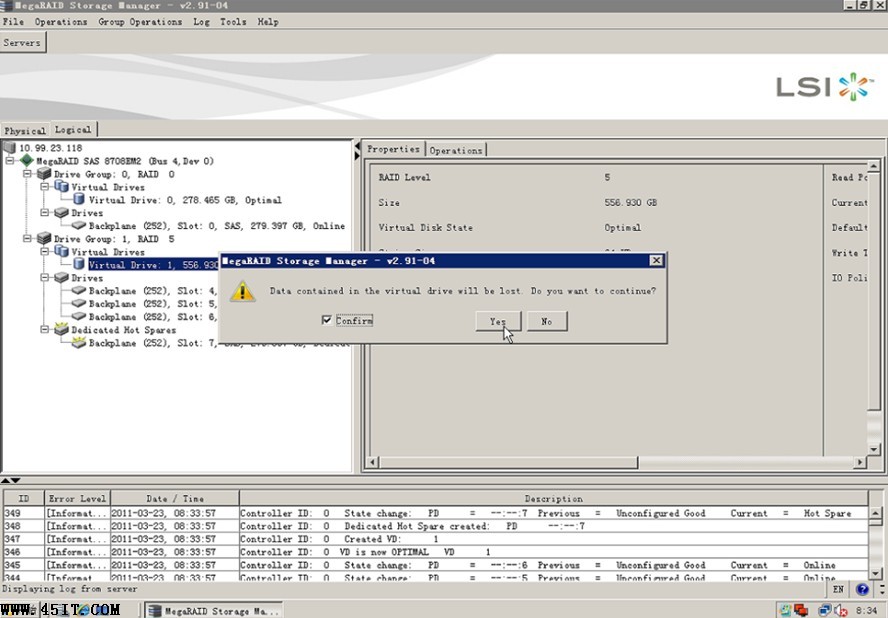
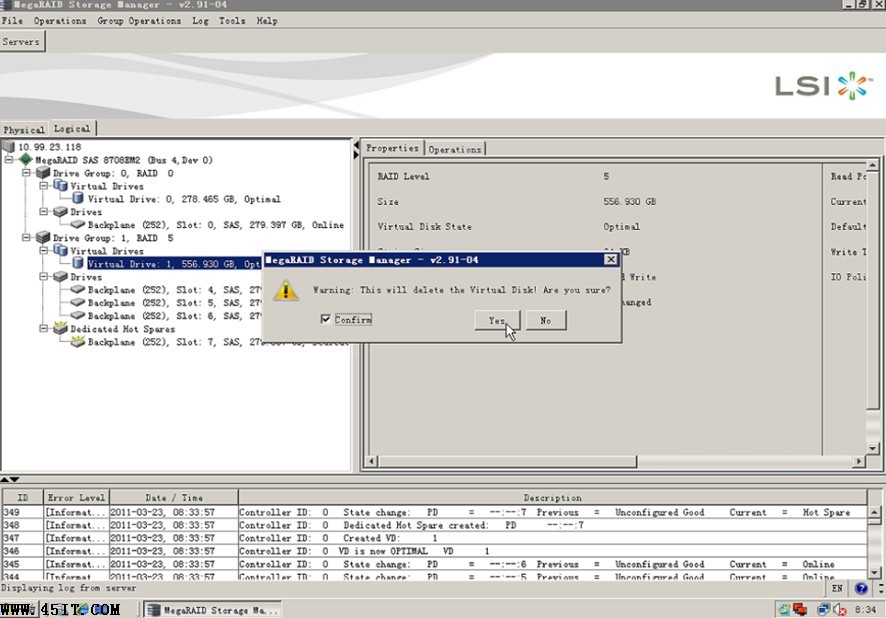
  1. 彈出確認對話框:**「Are you sure you want to delete this virtual drive?」**
  2. **必須勾選** `Confirm` 核取方塊
  3. 點擊 **`Yes`** 執行刪除

第一次確認對話框

第二次確認對話框

刪除完成後狀態

  • 該 Virtual Drive 從列表消失
  • 底層 Physical Drives 狀態變為 **`Unconfigured Good` (UG)** 或 **`Ready` (JBOD 模式)**
  • 原陣列佔用的容量釋放,可用於建立新陣列或作為熱備援
  • 事件日誌記錄:`Virtual Drive deleted`、`Physical Drive state changed to UG`

關鍵注意事項 (必讀)

命令列替代方案 (StorCLI)

# 列出所有虛擬磁碟
storcli /c0 show

# 刪除 VD 0 (假設目標為 VD 0)
storcli /c0/v0 del force

# 確認物理磁碟狀態
storcli /c0/eall/sall show

適用於無圖形介面的 Linux 伺服器/核心版 Windows / 自動化腳本。

結語

MSM 刪除陣列操作簡單直觀,**雙重確認機制有效防誤操作**。核心風險在於**資料備份完整性**與**作業系統層面乾淨分離**。生產環境務必遵循:備份驗證 → OS 卸載 → MSM 刪除 → 物理磁碟狀態確認 → Foreign Config 清理,全程留存操作截圖與日誌備查。
Copyright © Windows教程網 All Rights Reserved
項目說明
資料備份**刪除前必須完成資料備份/遷移**,刪除動作不可逆,資料永久銷毀
作業系統層面先在 OS 層 `umount`/`offline` 對應磁碟區,移除掛載點/磁碟機代號,再執行 MSM 刪除
啟動磁碟區**嚴禁刪除含作業系統啟動分割區的 Virtual Drive**,會導致系統無法開機
快取資料若控制器啟用 WriteBack 快取且有 BBU/FBWC,刪除前確認快取資料已寫入盤面 (MSM 顯示 `Cache: Clean`)
Foreign Config刪除後 Physical Drives 可能殘留 Foreign Configuration,需在 MSM `Foreign` 節點 `Clear` 或 `Import`