同一套 .NET 程式部署在兩台伺服器,一台正常顯示 OpenFlashChart 圖表,另一台僅在 IE6 顯示 「IO Error #2032」,Firefox/IE7+ 正常。
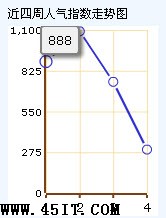
IE6 下 OpenFlashChart 載入失敗 IO Error #2032

正常環境下圖表正確渲染
問題伺服器啟用了 IIS Gzip 動態/靜態壓縮,且回應標頭包含 Cache-Control: no-cache。IE6 對「壓縮內容 + no-cache」組合處理有缺陷:解壓縮後嘗試快取卻發現 no-cache,導致資料流中斷,Flash 外掛接收到空資料流拋出 #2032。
在輸出 OpenFlashChart 資料的頁面 (如 Chart.aspx、Chart.ashx) 的 Page_Load 或 ProcessRequest 中,移除單純 Response.CacheControl = "no-cache",改用完整指令組合:
Response.Clear();
// Response.CacheControl = "no-cache";  // 單行 no-cache 在 IE6+Gzip 下失效
// 使用完整指令組合,明確禁用快取且相容壓縮
Response.AppendHeader("Cache-Control", "no-cache, no-store, must-revalidate, max-age=-1");
Response.Write(chart.ToString()); // 輸出 OpenFlashChart XML/JSON 資料流
Response.End();no-store:禁止任何快取 (含記憶體/磁碟),解決 IE6 壓縮後快取衝突。must-revalidate:強制驗證,確保不使用過期內容。max-age=-1:明確標示已過期。Global.asax Application_BeginRequest 針對圖表輸出路徑 (*.ashx/Chart*) 統一加上此標頭。<urlCompression doDynamicCompression="true" doStaticCompression="true" /><add mimeType="application/x-shockwave-flash" enabled="false" /> (在 <dynamicTypes> 中)。VPS 三大虛擬化技術深度對比:OpenVZ vs Xen vs KVM
MySQL 服務啟動報錯 1067 (進程意外中止) 根因排查與 my.ini 標準化配置
資料中心雲端儲存災難恢復:資料如何取回與業務如何復原的關鍵規劃
Apache 基於 .htaccess 的 Web 目錄訪問控制實戰
使用 Telnet 連接埠 25 測試 SMTP 通訊完整指南
IIS「Server Application Unavailable」錯誤解決:調整應用程式集區閒置逾時
Windows 2000 系統日誌完整解析與安全清除實戰:應用程式/安全/系統/FTP/WWW/排程日誌位置、註冊表對應與清除技術