Windows XP Windows 7 Windows 2003 Windows Vista Windows 綜合教學 Linux 系統教學
Windows 10 Windows 8 Windows 2008 Windows NT Windows Server 電腦軟體教學
您现在的位置: Windows教程網 >> Windows教程 >  >> Linux 系統教學 >> Linux 教學

Red Hat 5.4 USB 安裝全流程與 GRUB 引導修復圖解教程

編輯:Linux 教學

準備工具與材料

  • FbinstTool.exe(USB 啟動製作工具)
  • redhat-5.4-boot.fba(預提取 boot.iso 的啟動映像)
  • rhel-server-5.4-i386-dvd.iso(完整安裝映像)
  • 4GB 以上 USB 隨身碟

製作啟動 USB

  1. 執行 FbinstTool.exe,選擇 USB 裝置
  2. 點擊「格式化」→ 選擇 redhat-5.4-boot.fba 寫入
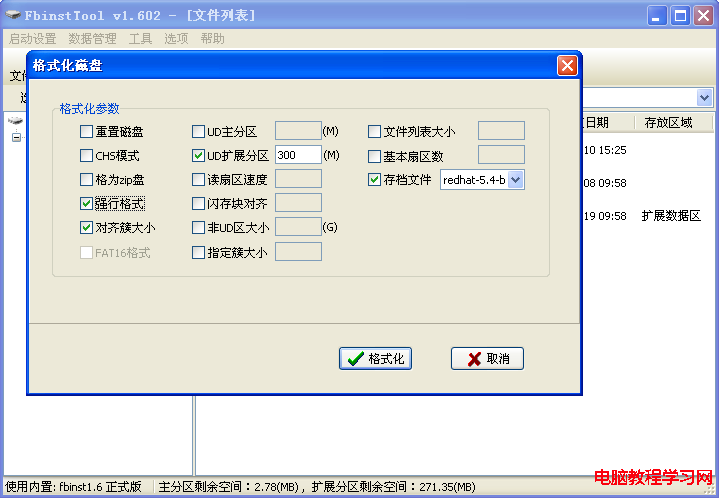
  3. FbinstTool 格式化介面
  4. 將 rhel-server-5.4-i386-dvd.iso 直接複製到 USB 剩餘可見分區

BIOS 設定與安裝啟動

  1. 進入 BIOS,設定 USB 為第一啟動順序
  2. 重啟進入 RHEL 5.4 安裝畫面,按 F2 輸入:linux askmethod
  3. 選擇 Local CDROM → 掛載 USB 中的 ISO 映像

關鍵:GRUB 引導裝置順序調整

核心陷阱: 安裝程式預設將 GRUB 寫入 /dev/sdb(USB),拔除 USB 後系統無法開機。

解決步驟

  1. 分區階段選擇「自定義佈局」
  2. 建立分區:/boot 128M、swap 1024M、/ 剩餘空間
  3. 進入「引導載入程式配置」畫面,點擊「改變驅動器順序」
  4. 將 /dev/sda(硬碟)移至最上方,/dev/sdb(USB)下移
  5. 確認 GRUB 安裝目標為 /dev/sda

安裝完成後修復 GRUB(若仍報 Error 21)

  1. 進入救援模式:啟動時輸入 linux rescue
  2. 執行:
    chroot /mnt/sysimage
    vi /boot/grub/grub.conf
  3. 檢查 root (hd0,0) 對應實際 /boot 分區
  4. 重新安裝 GRUB:
    grub-install /dev/sda
  5. 退出重啟

GRUB 配置關鍵參數說明

default=0
timeout=5
splashimage=(hd0,0)/grub/splash.xpm.gz
hiddenmenu
title Red Hat Enterprise Linux Server (2.6.18-53.el5)
        root (hd0,0)
        kernel /vmlinuz-2.6.18-53.el5 ro root=/dev/VolGroup00/LogVol00 rhgb quiet
        initrd /initrd-2.6.18-53.el5.img
  • root (hd0,0):GRUB 命名法,第 1 顆硬碟第 1 個分區(即 /boot)
  • kernel 參數 root= 指定真實根檔案系統(LVM 邏輯卷或實體分區)

避坑總結

  1. 務必在安裝前調整驅動器順序,事後修復極繁瑣
  2. USB 製作工具版本需與 ISO 版本匹配(RHEL 5.x 專用 fba)
  3. 安裝過程若報 Error 21: Selected disk does not exist,99% 為 GRUB 裝錯裝置

  4. 生產環境建議改用 PXE/Kickstart 自動化安裝,避免人工介入風險
Copyright © Windows教程網 All Rights Reserved