Windows XP Windows 7 Windows 2003 Windows Vista Windows 綜合教學 Linux 系統教學
Windows 10 Windows 8 Windows 2008 Windows NT Windows Server 電腦軟體教學
您现在的位置: Windows教程網 >> Windows教程 >  >> Linux 系統教學 >> Linux 教學

Windows 7 與 Fedora 雙系統安裝:保護 MBR、使用 EasyBCD 管理開機選單完整教學

編輯:Linux 教學

核心策略:Linux 安裝不寫入 MBR,改寫入 /boot 分區啟動扇區,再由 Windows 開機管理器 (BCD) 連結 GRUB

安裝前準備

  1. Windows 7 磁碟管理壓縮磁碟區,預留空間給 Fedora (建議 20GB 以上)。
  2. 備份重要資料,準備 Fedora 安裝光碟/USB。

Fedora 安裝關鍵步驟

  1. 開機安裝至分區步驟,選擇「使用可用空間」或「自訂配置」。
  2. 建議分區:
    /boot 500MB (ext4)
    / (root) 15GB+ (ext4/xfs)
    swap 依記憶體大小 (通常 1-2 倍)
    /home 剩餘空間 (可選)
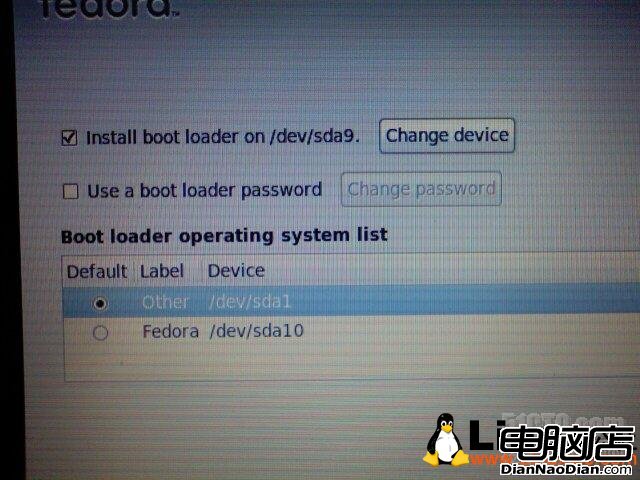
  3. 關鍵:開機載入程式配置 → 「變更裝置」 → 選擇 /boot 分區 (如 /dev/sda3),不要選擇 MBR (如 /dev/sda)。
    選擇/boot分區安裝GRUB
    時區設定:取消勾選 UTC (避免雙系統時間差)。
  4. 完成安裝,重開機直接進入 Windows 7 (無開機選單),這是預期行為。

Windows 7 端配置 EasyBCD

  1. 下載安裝 EasyBCD (免費版) 下載連結。
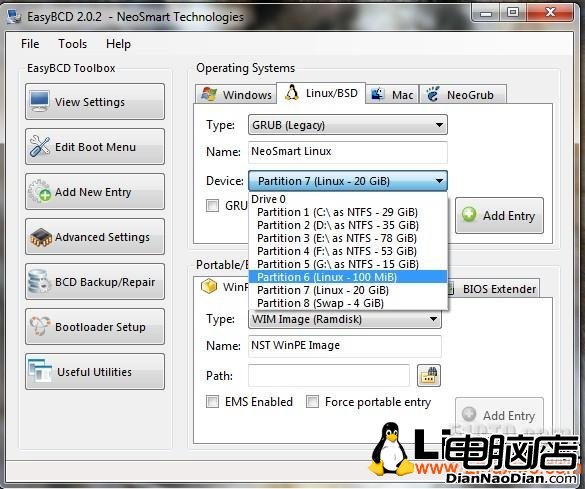
  2. 執行 EasyBCD → 「新增項目」 → 「Linux/BSD」頁籤:
    EasyBCD新增Linux項目
    - 類型:GRUB 2 (Fedora 16+ 為 GRUB2)
    - 名稱:Fedora Linux
    - 裝置:選擇 /boot 分區對應的磁碟機代號 (如 Disk 0 Partition 3)
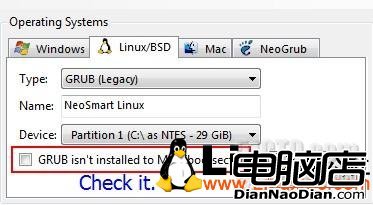
    - 勾選「GRUB isn't installed to MBR/bootsector」 (關鍵!)
    - 點選「新增項目」。
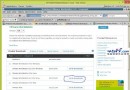
  3. 「檢視設定」確認新增項目存在。
    EasyBCD檢視設定
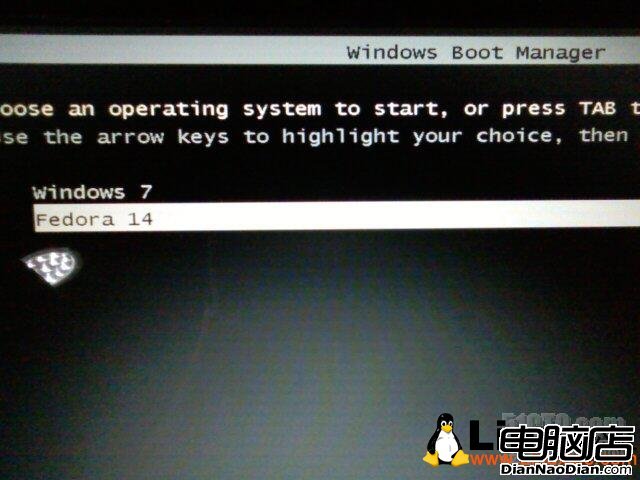
  4. 重開機,即出現 Windows 開機選單可選擇 Fedora。
    雙系統開機選單

移除 Linux 時

  1. EasyBCD → 「編輯開機選單」→ 刪除 Fedora 項目。
  2. Windows 磁碟管理 → 刪除 Linux 分區 (擴充 Windows 分區)。
  3. MBR 從未被 GRUB 覆寫,Windows 開機完全不受影響。

優點總結

  • Windows MBR 純淨,避免 GRUB 覆寫導致 Windows 無法開機。
  • 易於管理:圖形介面新增/刪除/排序開機項目。
  • 支援多種 Linux 發行版 (GRUB Legacy/GRUB2)、BSD、Mac OS X。
  • 適合初學者、不想動用命令列修復 MBR 的使用者。
Copyright © Windows教程網 All Rights Reserved