Linux Mint 17 Cinnamon 預設隱藏「桌面共享」選單,無法直接圖形化設定 vino-server。本文說明透過 dconf-editor 啟用桌面遠端存取、設定 VNC 密碼驗證、通知與提示權限等選項,並提供指令列快速啟用指令。
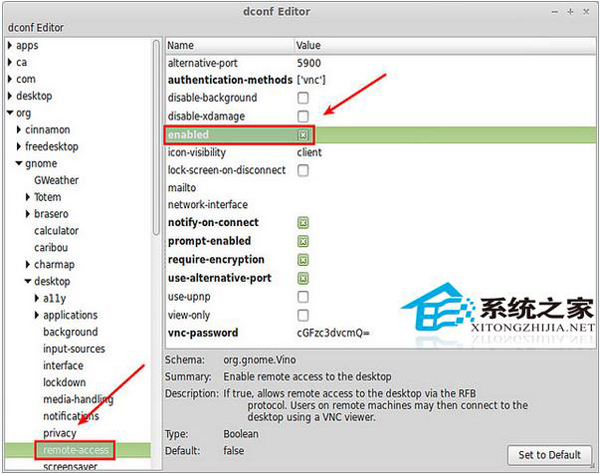
vino-preferences 圖形工具不再預裝。vino-server 仍內建,可透過 dconf/gsettings 設定。sudo apt-get install dconf-editordconf-editororg → gnome → desktop → remote-access| 鍵值 | 建議值 | 說明 |
|---|---|---|
enabled | true | 啟用桌面遠端存取 (核心開關) |
authentication-methods | ['vnc'] | 使用 VNC 密碼驗證 |
vnc-password | 'cGFzc3dvcmQ=' | 密碼 Base64 編碼 (例: "password" → "cGFzc3dvcmQ=") |
notify-on-connect | true | 收到連線請求顯示桌面通知 |
prompt-enabled | true | 遠端存取需桌面擁有者允許 |
view-only | false | 允許遠端控制 (非唯讀) |
lock-on-disconnect | true | 斷線自動鎖定螢幕 |
icon-visibility | 'client' | 面板顯示狀態圖示 |
echo -n 'your_password' | base64
# 輸出填入 vnc-password (含單引號)
# 啟用服務
gsettings set org.gnome.Vino enabled true

# 設定 VNC 密碼
gsettings set org.gnome.Vino authentication-methods "['vnc']"
gsettings set org.gnome.Vino vnc-password "$(echo -n 'your_password' | base64)"

# 其它選項
gsettings set org.gnome.Vino notify-on-connect true
gsettings set org.gnome.Vino prompt-enabled true
gsettings set org.gnome.Vino view-only false
# 啟動 vino-server 時報錯:
# (vino-server:4280): WARNING **: The desktop sharing service is not enabled, so it should not be run.
# 解決:確認 enabled=true (上述方法已處理)

# 連線失敗檢查:
# 1. 防火牆開放 5900 埠
sudo ufw allow 5900/tcp
# 2. 確認 vino-server 進程運行
ps aux | grep vino
# 3. VNC Viewer 連線測試
vncviewer localhost:5900
prompt-enabled 要求本端確認,降低未授權存取風險。x11vnc 或 tigervnc 獲得更穩定效能與加密支援。