CKEditor(舊稱 FCKeditor)是功能強大的所見即所得網頁編輯器,支援多種程式語言與框架。在 Linux 環境下整合 CKEditor 只需幾個步驟,本文詳細說明引入、初始化與進階配置。
<head> 中載入 ckeditor.js:
<script type="text/javascript" src="ckeditor/ckeditor.js"></script><textarea> 並加上 class="ckeditor":
<textarea id="TextArea1" cols="20" rows="2" class="ckeditor"></textarea>ASP.NET 環境亦可使用 <asp:TextBox> 並同樣加上 class="ckeditor"。
CKEDITOR.replace():
<script type="text/javascript">
CKEDITOR.replace('TextArea1');
// ASP.NET TextBox 在母版頁時需用 ClientID 替換底線
CKEDITOR.replace('<%=tbContent.ClientID.Replace("_","$") %>');
</script>所有配置集中於 ckeditor/config.js,常用參數如下:
// 介面語言
config.language = 'zh-cn';

// 寬高設定
config.width = 800;
config.height = 500;

// 皮膚樣式:'kama' (預設)、'office2003'、'v2'
config.skin = 'v2';

// 背景顏色
config.uiColor = '#FFF';

// 工具列模式
config.toolbar = 'Full';  // 或 'Basic'

// 完整工具列自訂範例
config.toolbar_Full = [
    ['Source', '-', 'Save', 'NewPage', 'Preview', '-', 'Templates'],
    ['Cut', 'Copy', 'Paste', 'PasteText', 'PasteFromWord', '-', 'Print', 'SpellChecker', 'Scayt'],
    ['Undo', 'Redo', '-', 'Find', 'Replace', '-', 'SelectAll', 'RemoveFormat'],
    ['Form', 'Checkbox', 'Radio', 'TextField', 'Textarea', 'Select', 'Button', 'ImageButton', 'HiddenField'],
    '/',
    ['Bold', 'Italic', 'Underline', 'Strike', '-', 'Subscript', 'Superscript'],
    ['NumberedList', 'BulletedList', '-', 'Outdent', 'Indent', 'Blockquote'],
    ['JustifyLeft', 'JustifyCenter', 'JustifyRight', 'JustifyBlock'],
    ['Link', 'Unlink', 'Anchor'],
    ['Image', 'Flash', 'Table', 'HorizontalRule', 'Smiley', 'SpecialChar', 'PageBreak'],
    '/',
    ['Styles', 'Format', 'Font', 'FontSize'],
    ['TextColor', 'BGColor']
];

// 工具列可摺疊
config.toolbarCanCollapse = true;
config.toolbarLocation = 'top';
config.toolbarStartupExpanded = true;

// 調整大小限制
config.resize_enabled = true;
config.resize_maxWidth = 3000;
config.resize_maxHeight = 3000;
config.resize_minWidth = 750;
config.resize_minHeight = 250;

// 表單送出時自動更新資料
config.autoUpdateElement = true;

// 基礎路徑與 z-index
config.baseHref = '';
config.baseFloatZIndex = 10000;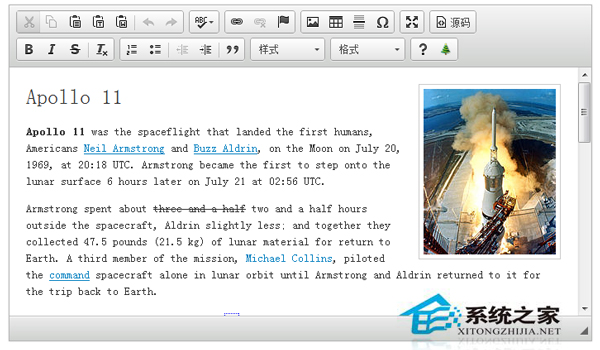
掌握上述設定即可在 Linux 專案中快速部署功能完整的富文本編輯器。