Windows 上使用 TortoiseGit 執行 git pull/push 時彈出 Git did not exit cleanly (exit code 128) 或 exit code 1,根因是 TortoiseGit 預設使用自帶的 TortoisePlink.exe 作為 SSH Client,與系統安裝的 Git for Windows ssh.exe 金鑰格式、Agent 整合不相容。修改 SSH Client 路徑即可解決。
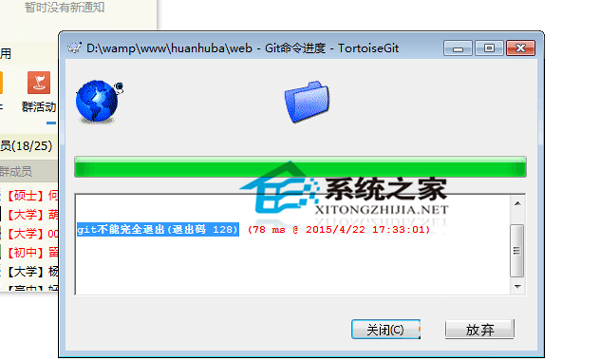
git.exe pull --progress -v origin master
fatal: Could not read from remote repository.
Please make sure you have the correct access rights
and the repository exists.
Git did not exit cleanly (exit code 128)C:\Program Files\TortoiseGit\bin\TortoisePlink.exeTortoisePlink 基於 PuTTY 格式金鑰 (.ppk),而 Git for Windows / OpenSSH 使用 OpenSSH 格式 (id_rsa, id_ed25519)。ssh.exe:C:\Program Files\Git\bin\ssh.exeC:\Program Files (x86)\Git\bin\ssh.exe)# 再次嘗試 pull
git pull origin master
# 應正常提示輸入 passphrase 或自動透過 ssh-agent 驗證# PowerShell (管理員)
Start-Service ssh-agent
Set-Service ssh-agent -StartupType Automatic
# 加入金鑰
ssh-add ~/.ssh/id_ed25519
# 輸入 passphrase 一次,後續 TortoiseGit 操作自動使用 Agent| 誤區 | 正確認知 |
|---|---|
| 以為是 Git 版本問題 | 實為 SSH Client 選擇問題,升級 Git 無效 |
| 繼續用 TortoisePlink 並轉換金鑰 | 可行但維護成本高,不如直接改用 ssh.exe |
| 修改後仍報錯 | 檢查 C:\Program Files\Git\bin\ssh.exe 是否存在、%PATH% 是否含 Git bin 目錄 |
將 TortoiseGit SSH Client 指向 Git\bin\ssh.exe,即可讓 Windows 上的 Git 圖形操作與命令列共用同一套 OpenSSH 金鑰體系,徹底消除 exit code 128/1 困擾。
UEFI 模式誤刪 GRUB 開機選單?手動引導進系統後重建 ESP 分區啟動項
Ubuntu 修改命令提示符 PS1:打造高效可讀的終端體驗
Linux 修改 PATH 環境變數三大法:暫時、系統永久、使用者永久、source 立即生效
Ubuntu 12.04 关闭恢复模式:Grub 配置 GRUB_DISABLE_RECOVERY 与应急进入方法
Ubuntu 與 Windows 局域網互訪共享檔案:Samba 無密碼與密碼保護兩種模式完整配置
Ubuntu 系統 Sublime Text 2/3/4 配置 fcitx 中文輸入法完整解決方案