| 參數 | 說明 |
|---|
--title "標題" | 對話框標題列文字 |
--backtitle "底部標題" | 背景標題(視窗底部) |
--clear | 結束後清除螢幕 |
--defaultno | 預設焦點在「否」按鈕 |
--nocancel | 隱藏取消按鈕(僅有 OK) |
--scrolltext | 啟用捲動(訊息框/文字框) |
回傳值處理關鍵
# 所有對話框:按 ESC/取消 回傳 1,按 OK/Enter 回傳 0
# 選單/核取/單選:標準輸出輸出選擇的標籤
# 輸入框/密碼框:標準輸出輸出輸入內容

# 關鍵技巧:重導向 stderr 到 stdout 捕捉選擇
OPTION=$(whiptail --menu "選單" 15 60 4 "1" "選項一" "2" "選項二" 3>&1 1>&2 2>&3)
二、核心對話框類型完整語法
1. 選單 --menu
whiptail --title "主選單" --menu "請選擇功能" 20 70 10 \
  "1" "新增使用者" \
  "2" "刪除使用者" \
  "3" "列出使用者" \
  "4" "離開" \
  3>&1 1>&2 2>&3
20 70 10:高度 20、寬度 70、選單高度 10(可見項目數)- 每組
"標籤" "描述"
2. 輸入框 --inputbox
whiptail --title "新增郵箱" --inputbox "請輸入郵箱地址:" 10 60 "user@domain.com" \
  3>&1 1>&2 2>&3
3. 密碼框 --passwordbox
whiptail --title "驗證" --passwordbox "請輸入密碼:" 10 60 \
  3>&1 1>&2 2>&3
4. 訊息框 --msgbox
whiptail --title "完成" --msgbox "操作已成功完成!" 10 50
5. 是/否確認框 --yesno
if whiptail --title "確認" --yesno "確定要刪除嗎?" 10 60; then
  echo "使用者選擇是"
else
  echo "使用者選擇否或取消"
fi
6. 資訊框 --infobox
whiptail --title "處理中" --infobox "正在備份資料,請稍候..." 10 50
sleep 3
# 注意:infobox 不會阻塞腳本,需自行控制時間
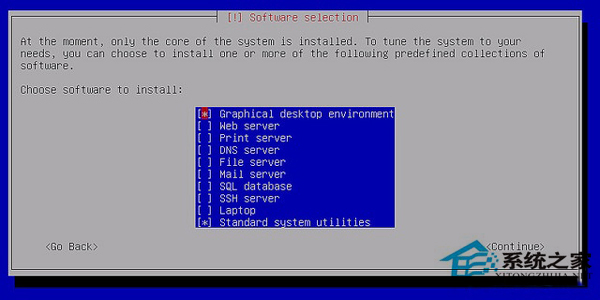
7. 核取方塊 --checklist(多選)
whiptail --title "安裝套件" --checklist "選擇要安裝的套件" 20 70 5 \
  "nginx" "Web 伺服器" ON \
  "mysql" "資料庫" OFF \
  "redis" "快取" ON \
  "docker" "容器" OFF \
  3>&1 1>&2 2>&3
ON/OFF:預設勾選狀態- 空白鍵切換,Enter 確認
- 輸出:
"nginx" "redis"(以空白分隔)
8. 單選按鈕 --radiolist(單選)
whiptail --title "選擇環境" --radiolist "部署環境" 15 60 3 \
  "dev" "開發環境" ON \
  "staging" "測試環境" OFF \
  "prod" "生產環境" OFF \
  3>&1 1>&2 2>&3
9. 進度條 --gauge
三、完整整合範例:郵件管理系統選單
#!/bin/bash
# mail_manager.sh

MAIL_MAP="/etc/postfix/virtual_mailbox_maps"
ADD_SCRIPT="/etc/postfix/mailadd.sh"
DEL_SCRIPT="/etc/postfix/maildel.sh"

trap "" 2  # 忽略 Ctrl+C

while true; do
  OPTION=$(whiptail --title "Email Manager" --nocancel --menu "Choose your option" 15 60 4 \
    "1" "Add Email User" \
    "2" "Delete Email User" \
    "3" "List Email User" \
    "4" "EXIT" \
    3>&1 1>&2 2>&3)

  case $OPTION in
    1)  # 新增
      EMAIL=$(whiptail --title "Add Email" --inputbox "Email address:" 10 60 "@domain.com" 3>&1 1>&2 2>&3)
      [ $? -ne 0 ] && continue

      if grep -q "^$EMAIL " "$MAIL_MAP"; then
        whiptail --msgbox "Email already exists!" 10 40
      elif whiptail --title "Confirm" --yesno "Add $EMAIL?" 10 60; then
        $ADD_SCRIPT "$EMAIL"
        whiptail --msgbox "Added: $EMAIL" 10 40
      fi
      ;;

    2)  # 刪除
      EMAIL=$(whiptail --title "Delete Email" --inputbox "Email address:" 10 60 "@domain.com" 3>&1 1>&2 2>&3)
      [ $? -ne 0 ] && continue

      if ! grep -q "^$EMAIL " "$MAIL_MAP"; then
        whiptail --msgbox "Email not found!" 10 40
      elif whiptail --title "Confirm" --yesno "Delete $EMAIL?" 10 60; then
        $DEL_SCRIPT "$EMAIL"
        whiptail --msgbox "Deleted: $EMAIL" 10 40
      fi
      ;;

    3)  # 列表
      USERS=$(awk '{print $1}' "$MAIL_MAP")
      whiptail --title "User List" --msgbox "$USERS" 20 60 --scrolltext
      ;;

    4)  # 離開
      echo "Goodbye!"
      break
      ;;
  esac
done

trap 2  # 恢復 Ctrl+C
四、whiptail vs dialog
| 特性 | whiptail | dialog |
|---|
| 函式庫 | newt | ncurses |
| 預設安裝 | Debian/Ubuntu | CentOS/RHEL |
| 參數相容性 | 大部分相容 | 標準參考 |
| 進度條支援 | 基本 | 較完整 |
| 建議 | 跨平台腳本用 whiptail | 複雜介面用 dialog |
五、最佳實踐提醒
- 永遠使用
3>&1 1>&2 2>&3 捕捉輸出,否則選擇結果會混入錯誤輸出
- 檢查
$? 判斷使用者是否取消(ESC/Cancel 回傳 1)
- 長文字務必加
--scrolltext 避免截斷
- 選單項目數(最後一個數字)不要超過終端機高度
- 搭配
--nocancel 強制使用者做選擇(如必要)
掌握 whiptail,能讓您的 Shell 腳本擁有專業級的互動體驗,適用於安裝精靈、系統配置工具、維護選單等場景。