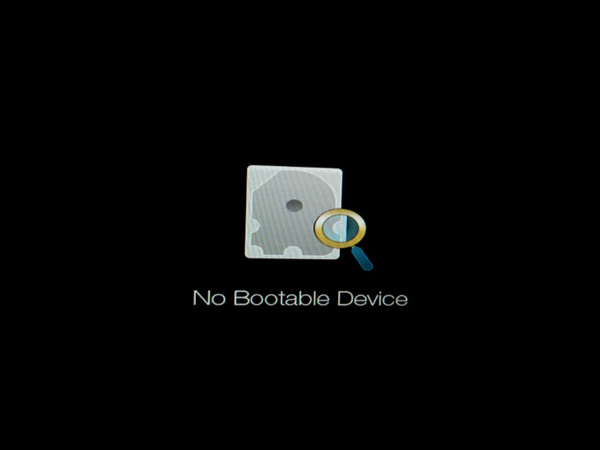
安裝 Ubuntu 雙系統後若出現 「No bootable device found」,通常是 UEFI 引導設定受損。本文以宏碁筆電為例,說明如何透過 BIOS/UEFI 介面將 Ubuntu 的 EFI 檔案加入信任清單,恢復正常啟動。
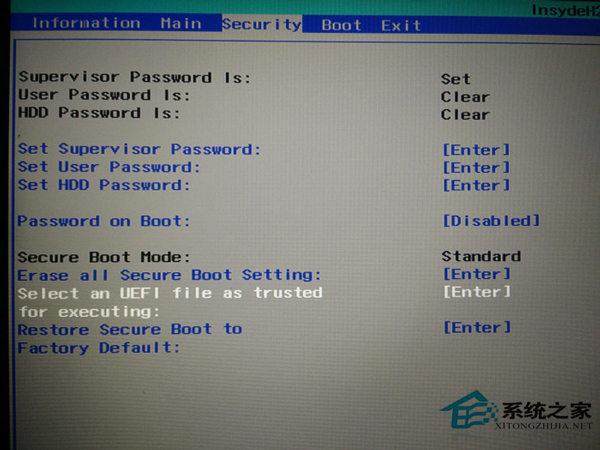
原理說明:此操作將 Ubuntu 安裝時產生的 EFI 開機檔案(通常為 shimx64.efi 或 grubx64.efi)加入 UEFI 信任白名單。因 Secure Boot 預設僅信任微軟簽章的載入器,加入信任後主機板才會嘗試從 Ubuntu 的 EFI 分區啟動。
完成後儲存並重啟(通常 F10 Save & Exit),即可進入 Grub 選單正常開機。
Linux Mint 17 Cinnamon 桌面共享設定:dconf-editor 啟用 Vino VNC 伺服器
Linux 硬體路由器轉發原理深度解析:TCAM、最長前綴匹配、硬體 Hash 與 CPU 順序執行差異
Linux 系統效能監控命令精選:top/vmstat/df/ps/free 實戰速查
Linux 安裝配置 Telnet 服務完整步驟(含 root 登入設定)
Linux 附加權限實戰:SUID、SGID 與 Sticky Bit 設定與效果驗證
Linux find 指令新手速成:從基礎語法到實戰範例的完整學習路徑