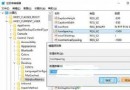
從 Win7/8.1 升級 Win10 後,開機過程出現漫長黑畫面,主因是筆電同時擁有核心顯卡與獨立顯卡,驅動衝突導致延遲。修改登錄表關閉 ULPS (Ultra Low Power State) 即可解決:
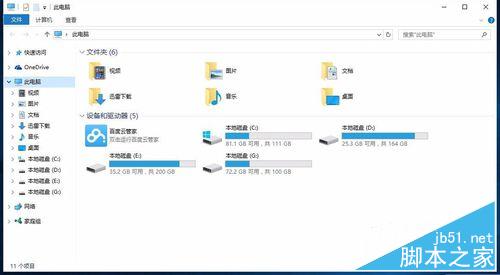
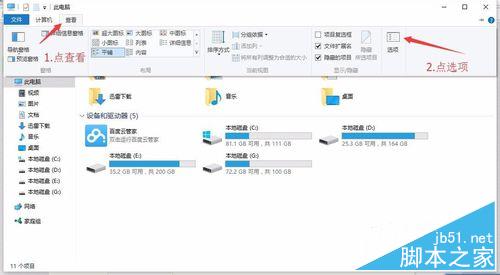
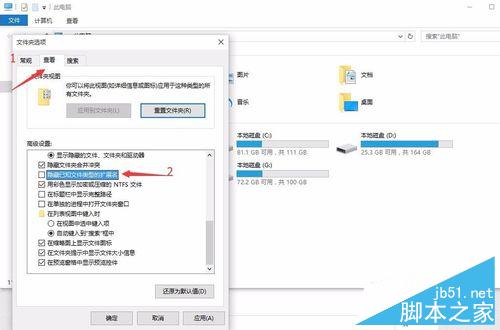
1.txt。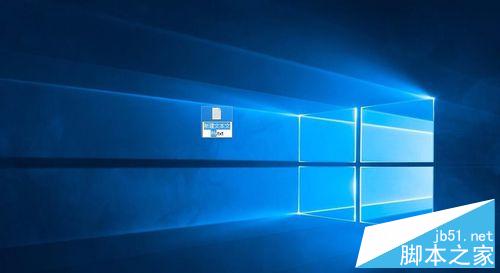
Windows Registry Editor Version 5.00

[HKEY_LOCAL_MACHINE\SYSTEM\ControlSet001\Control\Class\{4D36E968-E325-11CE-BFC1-08002BE10318}\0000]
"EnableULPS"=dword:00000000

[HKEY_LOCAL_MACHINE\SYSTEM\ControlSet001\Control\Class\{4D36E968-E325-11CE-BFC1-08002BE10318}\0001]
"EnableULPS"=dword:00000000
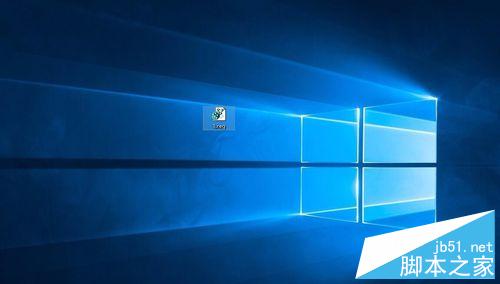
1.reg(確認變更副檔名)。1.reg 匯入登錄表(確認提示皆點「是」)。
原理: 將顯示卡類別下的 EnableULPS 設為 0,禁用超低功耗狀態,避免雙顯卡切換卡頓。對電腦效能幾乎無負面影響。