Windows XP Windows 7 Windows 2003 Windows Vista Windows 綜合教學 Linux 系統教學
Windows 10 Windows 8 Windows 2008 Windows NT Windows Server 電腦軟體教學

Win 8.1 桌面右下角「SecureBoot 未正確配置」移除教學

編輯:Win8 系統基礎知識

升級至 Windows 8.1 後,部分使用者發現桌面右下角常駐「SecureBoot 未正確配置」水印,影響視覺觀感。此問題通常源於主板 BIOS 中的 Secure Boot 設定與系統不相容,透過 BIOS 關閉 Secure Boot 即可解決。

解決方法:停用 BIOS Secure Boot

  1. 重開機,開機時連續點擊 Del 鍵(或 F2、F10 視主板而定)進入 BIOS 設定畫面。
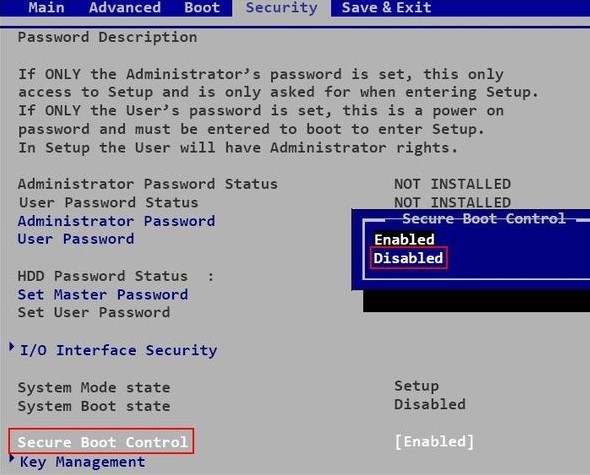
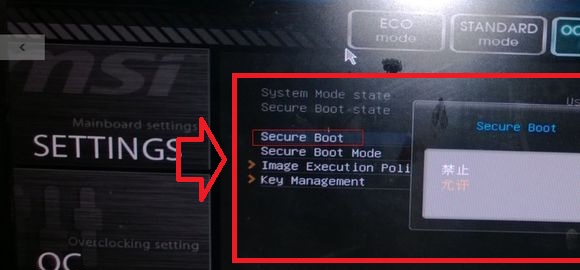
  2. 尋找「UEFI 設定」或「安全性」選單,找到「Secure Boot」選項。
  3. 將 Secure Boot 設為「Disabled(停用)」。
  4. 按 F10 儲存並離開 BIOS。

不同主板操作示例

微星主板:在「Security」頁籤下找到「Secure Boot Control」設為 Disabled。
華碩主板:進入「Boot」→「Secure Boot」→「Key Management」清除金鑰後停用。

若 BIOS 中找不到 Secure Boot 選項(較舊機型),可嘗試:
① 連網重新啟動 Windows 授權;
② 進入 PE 環境將硬碟分割表轉為 GPT(MSR)格式;
③ 更新主板 BIOS 至最新版本。
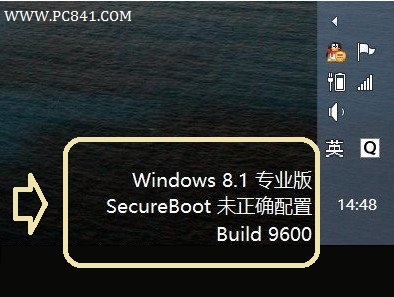
SecureBoot 未正確配置水印
微星主板停用 Secure Boot
華碩主板停用 Secure Boot

Copyright © Windows教程網 All Rights Reserved