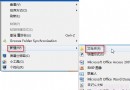
安裝 Windows 7 後,許多舊遊戲(如跑跑卡丁車)無法全螢幕顯示,左右出現黑邊。提供兩種解決方案,適用於大多數顯卡與遊戲。
regedit 開啟註冊表編輯器。HKEY_LOCAL_MACHINE\SYSTEM\ControlSet001\Control\GraphicsDrivers\ConfigurationConfiguration 上右鍵選擇「尋找」,輸入 Scaling。Scaling 值,將其數值資料改為 3(十進位)。explorer.exe 生效。此法對大多數遊戲有效,但對《穿越火線》(CF)效果不明顯,不同顯卡可能略有差異。
建立文字檔,貼入以下內容,存為 warcraft3_fix.reg 並雙擊匯入:
Windows Registry Editor Version 5.00

[HKEY_CURRENT_USER\Software\Blizzard Entertainment\Warcraft III\Video]
"reswidth"=dword:00000556
"resheight"=dword:00000300
注意:上述數值對應 1366×768 解析度(1366 十進位 = 0x556,768 = 0x300)。若您的螢幕解析度不同,請自行換算:
reswidth=500 (0x500), resheight=320 (0x320)reswidth=780 (0x780), resheight=438 (0x438)將對應十六進位值替換 REG 檔中對應位置後匯入即可。此法可讓遊戲在原生解析度下全螢幕運行,畫面細膩無拉伸變形。