Cortana 可掃描 Outlook/郵件與行事曆中的郵件,自動偵測航班資訊、飯店訂單、包裹追蹤號、帳單到期日等,並在鎖定畫面、Cortana 首頁、行事曆提醒中主動推送。若擔心隱私外洩、或不需此功能,可輕鬆關閉。
關閉步驟
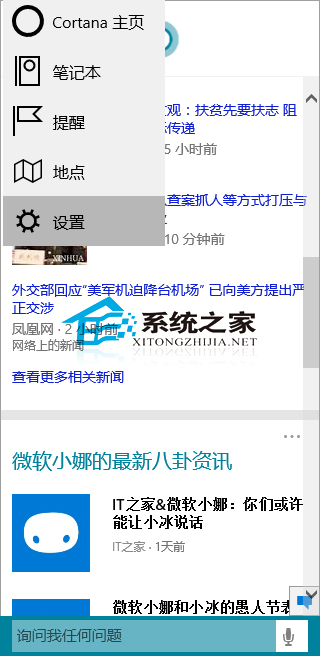
- 點擊工作列搜尋框(或按 Win+S)開啟 Cortana 介面。
- 點擊左上角 漢堡選單(三條線) > 「設定」(齒輪圖示)。
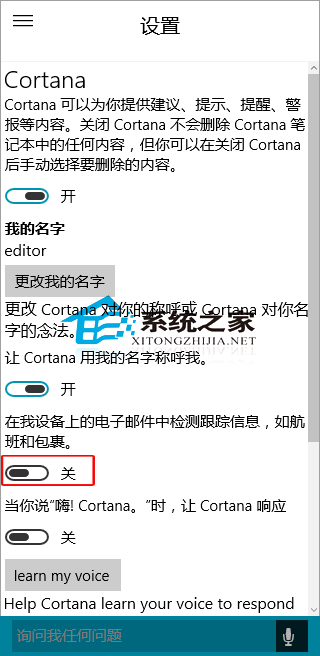
- 在設定頁面找到 「郵件與行事曆」 或 「隱私權 > 語音、墨跡輸入和輸入個人化」 相關選項(版本略有不同)。
- 關閉 「允許 Cortana 存取我的郵件與行事曆」 / 「追蹤郵件中的資訊」 開關。
影響範圍說明
- 關閉後:Cortana 不再掃描郵件內容,不會主動提醒航班/包裹/帳單,但基本語音指令、網頁搜尋、裝置搜尋不受影響。
- 若使用 Outlook 桌面版,其本身的「行事曆提醒」、「郵件規則」仍正常運作。
- 企業環境可透過群組原則
Computer Configuration > Administrative Templates > Windows Components > Search > Allow Cortana 統一停用。