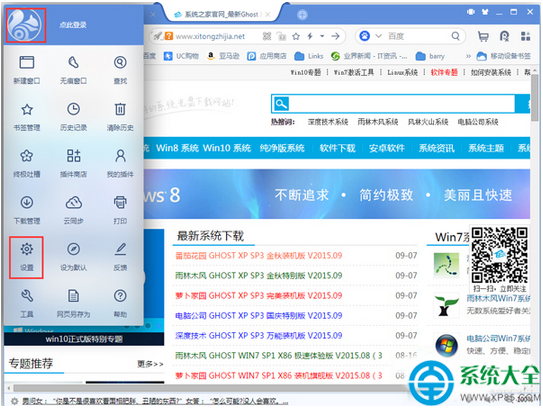
職場常需在 Outlook 與 Foxmail 間遷移郵件數據。手工轉發效率極低,掌握格式轉換與系統中轉技巧,實現無縫雙向導入導出。
Outlook → Foxmail(較簡單)
Foxmail 7.0+:
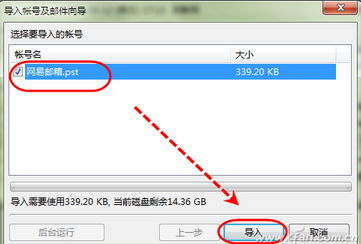
- 整個 .pst 導入:「檔案」→「導入」→「Outlook 個人資料夾檔案」→ 選 .pst →「導入」。
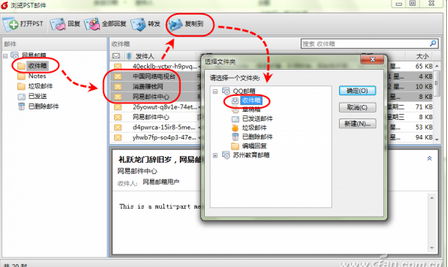
- 部分郵件導入:「檔案」→「瀏覽 PST 郵件」→ 開啟 .pst → 選信件 → 工具列「複製到」→ 選目標資料夾。
Foxmail → Outlook(需中轉,因存儲架構不同)
情況 A:Windows XP 系統 → 用 Outlook Express 中轉
- Foxmail 導出郵件為 *.eml:「檔案」→「導出」→「郵件」→ 指定路徑。
- 開啟 Outlook Express → 將 *.eml 拖入收件箱/資料夾。
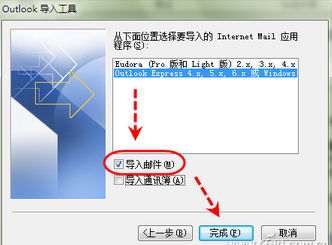
- Outlook:「檔案」→「開啟」→「導入」→「導入/導出嚮導」→ 選「Outlook Express」→ 導入郵件。
情況 B:Windows 7/8/10 系統 → 用 Windows Live Mail 中轉
- 安裝 Windows Live Mail,添加同郵箱帳號,建立臨時資料夾(如 Foxmail)。
- 退出 Live Mail → 資源管理器定位
[\Users\用戶名\AppData\Local\Microsoft\Windows Live Mail\帳號名\Foxmail] → 將 *.eml 複製進去。
- 開啟 Live Mail,Foxmail 資料夾出現郵件 →「檔案」→「導出電子郵件」→「郵件」→ 選「Microsoft Exchange」→ 連續「下一步」→ 選「選定的資料夾」→ 選「帳號名 → Foxmail」→ 完成導入。
最後驗證
打開 Outlook,左側資料夾列表出現 Foxmail 資料夾,郵件完整遷移成功。
核心邏輯:Foxmail (.eml) → 中轉客戶端 → Outlook 可識別格式。XP 用 OE,Win7+ 用 Live Mail,版本對號入座。