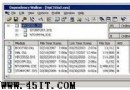
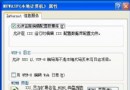
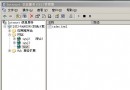
錯誤現象:IIS 日誌 (C:\Windows\System32\LogFiles\HTTPERR\httperr*.log) 大量出現:
Timer_MinBytesPerSecondTimer_ConnectionIdleIIS 6.0 預設連接保護機制:
MinFileBytesPerSec = 240:連接最小傳輸速率 (bytes/sec),低於此值判定為惡意慢速攻擊或客戶端異常,切斷連接ConnectionTimeout = 120 (秒):閒置連接最大保持時間SUS (Software Update Services) 等大檔案下載場景,客戶端下載速度緩慢或連接長時間閒置,觸發保護機制導致斷連。
C:\Windows\System32\inetsrv\MetaBase.xmlMinFileBytesPerSec → 修改為 0 (禁用速率檢查)ConnectionTimeout → 修改為 600 (10 分鐘)net stop iisadmin && net start iisadmincscript adsutil.vbs set w3svc/MinFileBytesPerSec 0
cscript adsutil.vbs set w3svc/ConnectionTimeout 600| 策略 | 優點 | 風險 | 建議 |
|---|---|---|---|
| 禁用速率檢查 (0) | 解決大檔下載斷連 | 易受 Slowloris/慢速攻擊 | 僅內網/受信環境,或配合 WAF 速率限制 |
| 調大閾值 (如 50) | 平衡防護與相容 | 仍可能誤殺 | 配合實際業務基線調整 |
| 保持預設 + WAF 防護 | 安全性最佳 | 需額外部署 WAF | 生產環境首選 |