PuTTY 連接 Linux 伺服器最常見的兩大問題:連接被拒絕、終端機亂碼。本文提供系統性排查與永久修復方案。
ping IP、telnet IP 22systemctl status sshd / service ssh statusiptables/firewalld/ufw/etc/ssh/sshd_config → Port 22、PermitRootLogin yes、PasswordAuthentication yessystemctl restart sshd# 安裝 SSH(若未裝)
apt-get update && apt-get install -y openssh-server # Debian/Ubuntu
yum install -y openssh-server # CentOS/RHEL
# 關鍵配置
sed -i 's/^#\?PermitRootLogin.*/PermitRootLogin yes/' /etc/ssh/sshd_config
sed -i 's/^#\?PasswordAuthentication.*/PasswordAuthentication yes/' /etc/ssh/sshd_config
grep -q '^UseDNS' /etc/ssh/sshd_config || echo 'UseDNS no' >> /etc/ssh/sshd_config
systemctl restart sshd
# 關閉防火牆(測試用,生產請精準放行)
systemctl stop firewalld && systemctl disable firewalld
# 或
ufw allow 22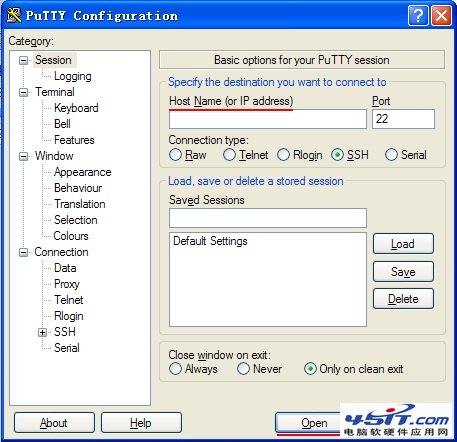
Consolas/DejaVu Sans Mono 等等寬字體/etc/sysconfig/i18n 強制 GB18030:破壞系統一致性、影響其他客戶端export LC_ALL=zh_CN.utf8:僅當前 Shell 生效、不解決 PuTTY 顯示層問題# 連接後執行
echo "中文測試"
ls /etc/ | head
# 應正常顯示中文檔名,無亂碼